


Controllers and retro sims part 7: More vJoy, Joystick Gremlin & HidHide

A introductory guide looking at some hypothetical examples as an aid to understanding how to use vJoy, Joystick Gremlin and HidHide together. For an overview of vJoy, joystick Gremlin and HidHide take a look at Controllers and retro sims part 6: vJoy & Joystick Gremlin.
Note: When the article was written I was a bit 'on the fence' about HidHide but with the latest version being WIn10/11 compatible and having used it a bit more I've warmed up to it a bit, although TARGET is still my 'go to' profiling software of choice.
The devices
For this guide we'll take a look at three different fictional joystick/HOTAS setups which we'll use with a fictional Windows 98 flight sim.
MacroShaft SlideWonder
The MacroShaft SlideWonder is a 3 axis joystick. It has standard x and y axes common to all joysticks and a slider axis that could act as a throttle. It has 2 buttons on the joystick but no hat switch. This provides:
Button 1
Button 2
X-axis
Y-axis
Slider axis
MacroShaft SlideWonder 2
The MacroShaft SlideWonder 2 (an update to the SlideWonder) is a 4 axis joystick. It has standard x and y axes common to all joysticks and a slider axis that could act as a throttle. It also has a twist stick that could act as a rudder, however this axis is an x-rotation axis. It has 6 buttons on the joystick and a hat switch. This provides:
Button 1
Button 2
Button 3
Button 4
Button 5
Button 6
X-axis
Y-axis
Slider axis
X-rotation axis
Hat 1
RustMeister WhatHotas Cooler
The RustMeister WhatHotas Cooler is a HOTAS setup comprising of a joystick device with x and y axes, 8 buttons and a hat switch. The separate throttle device has a throttle axis, a slider axis and a dial that can act as another axis and more buttons! It also has a separate rudder pedals device with each pedal having a toe brake axis. It provides:
Joystick:
Buttons 1-8
X-Axis
Y-Axis
Hat 1
Throttle:
Buttons 9-20
Z-Axis
Slider axis
Slider 2 axis
Pedals:
Left toe axis
Right toe axis
Z-rotation axis
The game

F-122 Dominant Air Fighter Technology Demonstrator (DAFT Demo) is a fictional early Windows game, that can use 4 joystick buttons and a hat switch, it uses the following axes:
An x-axis to control roll.
A y-axis to control pitch.
A z-axis to control throttle.
A z-rotation axis to control rudder/yaw.
The 4 joystick buttons fire guns, fire missiles/release bombs, switch targets, select weapons but the isn't too important to our discussion.
The hat switch is use to look around the virtual sim cockpit.
If the sim can't find a suitable z-axis or z-rotation axis, it will allow the corresponding keyboard controls to be used.
As it is an early Windows sim it expects a maximum of 4 axes to be present on a single device.
If it can't find a hat switch keyboard controls can be used to look around the virtual cockpit.
The rest of this guide will discuss how we can use each of our fictional devices with this fictional sim.
MacroShaft SlideWonder
The SlideWonder has an x and y axis we could use it to fly the aircraft.
However, we couldn't control the throttle as the SlideWonder has a slider axis and the sim is looking for a z-axis for the throttle.
As there is no rudder axis we can still use the keyboard to control the rudder.
As there is no hat we can still use the keyboard to look around the cockpit.
We can use the 2 buttons to fire guns and release other weapons but as we lack a 3rd or 4th button, switching targets and selecting weapons will have to be done with the keyboard.
Obviously this isn't ideal as we may wish to use the slider axis to control the throttle.
MacroShaft SlideWonder 2
The SlideWonder 2 has an x and y axis we could use it to fly the aircraft.
However we couldn't control the throttle as the SlideWonder 2 has a slider axis and the sim is looking for a z-axis for the throttle.
We can't use the twist stick action to control the rudder as it an x-rotation axis and the sim wants to use a z-rotation axis for the rudder.
As it has a hat switch we can use this to look around the cockpit.
Again this isn't ideal as we may wish to use the slider axis to control the throttle and the twist stick x-rotation axis to control the rudder.
RustMeister WhatHotas Cooler
With the WhatHotas Cooler setup we have a different problem. With this setup we have all the buttons and axes we need (in fact more than enough). Unfortunately they are spread over 3 separate devices and DAFT Demo being an earlier Windows sim, expects all the axes, buttons and hat to be on a single device.
If DAFT Demo happens to pick the joystick device we could at least fly the aircraft and look around, but if it picks the throttle or pedals we'll have a very hard time flying! What we want to do is to combine the axes, buttons and hats we want to use in our sim into a single device and tell our sim to use that single device.
vJoy
Now we know what the issues with our devices are, we can create an ideal virtual controller for the game and this is when we use vJoy.
MacroShaft SlideWonder
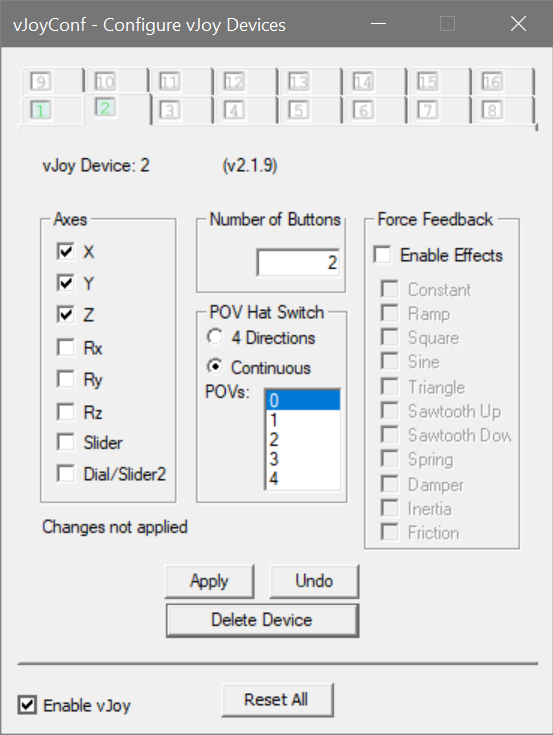
Even though the DAFT Demo supports 4 buttons, 4 axes and 1 hat the SlideWonder only supports 2 buttons and 3 axes. So adding more than 2 buttons or 3 axes or a hat will result in a virtual controller with buttons, axes or a hat we can't map to the SlideWonder.
Even worse if DAFT Demo uses a virtual controller with 4 axes it may disable the keyboard commands for the rudder as the 4th axis is configured in our virtual controller!
Therefore the optimum virtual controller for the SlideWonder is a 3 axes (X, Y and Z-axis), 2 button virtual controller without a hat.
We specify the Z-axis and not the Slider axis as DAFT Demo expects a Z-axis. The vJoy virtual controller is for the game not the device!
MacroShaft SlideWonder 2

DAFT Demo supports 4 buttons, 4 axes and 1 hat, the SlideWonder 2 has 6 buttons, 4 axes and a hat.
The vJoy virtual controller can have 4 buttons (supported by DAFT Demo), 4 axes (X, Y, Z and Z-rotation, supported by DAFT Demo) and 1 hat (supported by DAFT Demo). This virtual controller has all the buttons, axes and hats supported by the game and shown in the screenshot.
RustMeister WhatHotas Cooler
DAFT Demo supports 4 buttons, 4 axes and 1 hat, the WhatHotas Cooler has 20 buttons, 8 axes and a hat.
The vJoy virtual controller can have 4 buttons (supported by DAFT Demo), 4 axes (X, Y, Z and Z-rotation, supported by DAFT Demo) and 1 hat (supported by DAFT Demo). This virtual controller has all the buttons, axes and hats supported by the game. The fact they are spread over multiple devices does not matter to vJoy, the virtual controller is for the game not the devices!
Joystick Gremlin
Joystick Gremlin is the device profiling app, which allows you to create a profile for a game/sim mapping from your physical device to the vJoy virtual device. We have a physical device, the SlideWonder, SlideWonder 2 or WhatHotas Cooler. We also have the vJoy virtual device.
Now we need to go through the examples of mapping each of the physical devices to the vJoy virtual device to create a profile for DAFT Demo!
A note on releases
Release 13 of Joystick Gremlin was the standard for a quite a long time and probably the one most people are familiar with, however, Release 14 has become available. It features a new interface but is not backwardly compatible with the profiles created by R13.
Both releases can be installed and sit happily alongside each other.
Conceptually the process in mapping from physical to virtual controllers is similar (if not identical) but for the purposes of this guide the latest Release 14 is used.
Joystick Gremlin release 13 Joystick Gremlin release 14
To begin create a new profile.
Mapping an axis
To map an axis is straightforward, and involves the following steps:
Select the physical device (3rd menu bar from the top).
The axes, buttons and hats supported by the physical device will be displayed in the left hand pane.
Select an axis, axes are numbered but are usually in x, y, z, rotation axis order, e.g. axis 1 is x-axis.
Click on New Action Sequence.
Ensure the Axis radio button is checked.
Select Map to vJoy in the dropdown menu.
Click Add Action.
Ensure the correct vJoy device is selected, if you only have a single vJoy device this will be vJoy Device 1.
Select the correct vJoy device axis, for axis 1 this is vJoy X Axis. axis 2 is vJoy Y Axis, etc.
Ensure the Absolute radio button is checked.
Continue mapping the physical device axes.

Mapping a button
Mapping a button is similar to mapping an axis, the steps are:
Select the physical device (3rd menu bar from the top).
The axes, buttons and hats supported by the physical device will be displayed in the left hand pane.
Select a button, buttons are numbered sequentially from 1.
Click on New Action Sequence.
Select Map to vJoy in the dropdown menu.
Click Add Action.
Ensure the correct vJoy device is selected, if you only have a single vJoy device this will be vJoy Device 1.
Select the correct vJoy device button, for Button 1 this is vJoy Button 1, etc
Continue mapping the physical device buttons.

Mapping a hat
Mapping a hat is similar to mapping an axis or button, the steps are:
Select the physical device (3rd menu bar from the top).
The axes, buttons and hats supported by the physical device will be displayed in the left hand pane.
Select a hat, hats are numbered sequentially from 1 (there may be only 1).
Click on New Action Sequence.
Ensure the Hat radio button is checked.
Select Map to vJoy in the dropdown menu.
Click Add Action.
Ensure the correct vJoy device is selected, if you only have a single vJoy device this will be vJoy Device 1.
Select the correct vJoy device hat, for Hat 1 this is vJoy Hat 1, etc.
Continue mapping the physical device hats, although normally there will only be one hat.

Once all axes, buttons and hats are configured the profile should be saved. A game specific profile name is recommended.
Activate the profile
Clicking on the joystick ison, will turn it blue indicating the profile is active. In addition the Status in the bottom of the Gremlin window will show Status: Active.
Testing
Under the Tools menu, the Input Viewer utility allows to select both physical and vJoy devices, Axes, buttons and hats can be selected in order to test that physical axes, buttons and hats are mapping to the correct vJoy axes, buttons and hats, as shown below:

Now we know how easy it is to map axes, buttons and hats we can take a look at the fictional device examples.
MacroShaft SlideWonder
It's useful to compare the SlideWonder axes and buttons with the vJoy axes and buttons as shown below:
SlideWonder:
Button 1
Button 2
X-axis
Y-axis
Slider axis
vJoy:
Button 1
Button 2
X-axis
Y-axis
Z-axis
The mapping is straightforward with all SlideWonder buttons and axes mapping to the corresponding vJoy buttons and axes. The only difference bering the SlideWonder Slider axis mapping to the vJoy Z-axis.
MacroShaft SlideWonder 2
Again we compare the SlideWonder 2 axes, buttons and hat with the vJoy aces, buttons and hat.
SlideWonder 2:
Buttons 1-4
Buttons 5 & 6
X-axis
Y-axis
Slider axis
X-rotation axis
Hat 1
vJoy:
Buttons 1-4
X-axis
Y-axis
Z-axis
Z-rotation axis
Hat1
SlideWonder 2 buttons 1-4 are mapped to vJoy buttons 1-4.
SlideWonder 2 buttons 5 & 6 aren't mapped to vJoy.
SlideWonder 2 x-axis and y-axis are mapped to vJoy x-axis and y-axis.
SlideWonder 2 slider axis is mapped to vJoy Z-axis.
SlideWonder 2 x-rotation axis is mapped to vJoy Z-rotation axis.
SlideWonder 2 hat 1 is mapped to vJoy hat 1.
RustMeister WhatHotas Cooler
With the WhatHotas Cooler there are multiple devices we map to the vJoy virtual device. Comparing the physical devices with vJoy we have:
Joystick:
Buttons 1-4
Buttons 5-8
X-Axis
Y-Axis
Hat 1
Throttle:
Buttons 9-20
Z-Axis
Slider axis
Slider 2 axis
Pedals:
Left toe axis
Right toe axis
Z-rotation axis
vJoy:
Buttons 1-4
X-axis
Y-axis
Z-axis
Z-rotation axis
Hat1
Joystick buttons 1-4 are mapped to vJoy buttons 1-4.
Joystick x/y-axes are mapped to vJoy x/y-axes.
Throttle z-axis is mapped to vJoy z-axis.
Pedals z-rotation axis is mapped to vJoy z-rotation axis.
Joystick hat 1 is mapped to vJoy hat 1.
The remaining axes and buttons are not mapped to vJoy.
What about the other buttons?
Both the SlideWonder 2 and WhatHotas Cooler have additional buttons that can be mapped, just not to the vJoy device. These additional buttons can be mapped to keyboard sim commands (e.g. toggle landing gear, toggle speedbrake, switch external views, etc) using Joystick Gremlin, however this is not covered in this guide.
HidHide
Now that we have a vJoy virtual controller and a Joystick Gremlin profile mapping the physical device to the vJoy virtual controller we must be set and ready to go?
Well no, in fact we've made the situation worse. Before there were only the physical devices DAFT Demo could see, now it has physical devices and the vJoy device to choose from! If only there was some way to hide the physical devices so that DAFT Demo would only see the vJoy device... some sort of device firewall.
This is exactly what HidHide is, a device firewall, allowing you to hide some devices from games and apps while allowing others to be seen!
Hidhide is a very simple app, with only two tabs, an Application tab and a Devices tab.
Hiding devices
When you select the Devices tab you are shown all the devices, both physical and vJoy devices HidHide can see. Simply check the physical devices you want to hide and check the Enable device hiding checkbox, that's it!
In our example we would see a SlideWonder, SlideWonder 2 or the physical joystick, throttle and pedal devices of the WhatHotas Cooler alongside the vJoy virtual joystick.
We would check the physical devices, hiding them.
This would leave the vJoy virtual joystick visible to DAFT Demo.
In the below screenshots we can see a number of physical devices selected for hiding, with a couple of vJoy devices left visible in HidHide. In the next screenshot the Windows joystick control panel (joy.cpl) shows only the vJoy devices left visible.
Hiding devices with HidHide Only vJoy devices left visible
Allowing applications (to see through the firewall)
This tab is where you allow certain applications to see through the HidHide device firewall. The first one is the HidHide client as it makes life very difficult if the client couldn't see through it's own device firewall!
The only other app which needs to see through the firewall is Joystick Gremlin as it needs to read data from the hidden physical devices and send it to the vJoy device.
In the below screenshots we see the list of applications allowed including the HidHide client (added by default), Joystick Gremlin Release 13 and Joystick Gremlin Release 14. In the next screenshot we see Joystick Gremlin release 14 able to list the hidden physical devices.
Allowing apps to see through the firewall Joystick Gremlin can still see hidden devices
Turning off (and returning to normal)
Once your DAFT Demo gaming session is over and you wish to return things back to normal, perhaps to play a different sim, you need to:
HidHide
Uncheck the Enable device hiding checkbox.
Joystick Gremlin
Click on the blue joystick icon to disable the Joystick Gremlin profile. The status at the bottom of the window should change to Status: Not Running.
vJoy
Uncheck the Enable vJoy checkbox.
Notes
There is an awful lot more that can be done with Joystick Gremlin profiles, but this was an introductory guide showing how the 3 apps work together.
For an overview of vJoy, Joystick Gremlin and HidHide and how to obtain them take a look at Controllers and retro sims part 6: vJoy & Joystick Gremlin.
vJoy
In the above examples we created a vJoy virtual controller specifically for a fictional game that supported 4 buttons. In other vJoy/Joystick Gremlin tutorials or guides you may have seen, the maximum 32 buttons may have been recommended for the vJoy virtual controller.
This is perfectly acceptable as Joystick Gremlin is used to map physical buttons to virtual buttons and if more buttons are configured in the vJoy virtual controller but not mapped by Joystick Gremlin, the additional buttons will be ignored.
However this introductory guide is attempting to show the relationship between physical devices, vJoy, Joystick Gremlin, HidHide and the fictional DAFT Demo game. Limiting the number of vJoy buttons to the four supported by the fictional sim hopefully helps to do that.
Finally
Credit and thanks go to:
A huge thank you to all the developers and maintainers of vJoy, Joystick Gremlin, and HidHide, your hard work is appreciated!
The developers of F-122 Dominant Air Fighter Technology Demonstrator :)
MacroShaft for their SlideWonder joysticks :)
TrustMeister for their WhatHotas line of products :)
Buttons up and hats on!
Comments