


iF-22: Infuriating F-22!
Updated: Oct 22

One of the Interactive Magic (or I-Magic) series of flight sims, iF-22 (also known as iF-22: The Raptor simulator) never reached the heights of classic sim. At the time of release it was considered a fun and entertaining sim, with scenery based on satellite imagery. However it was also considered very resource heavy both in mission loading times, and disk space and using sat imagery for the scenery may have been a little ambitious for 1997.
It seems to have been a very diversive sim with some loving it, but for others the textures and scenery felt a little off. Wingman and enemy AI also came in for some criticism. Not quite the study sim we have today but far from casual at the time, it seems to have tread the fine line between seriousness and fun rather effectively. It received some pretty favourable reviews at the time but the player base remained divided.
It went through some comprehensive changes culminating in the version 3.3 patch which which made major changes but still left some issues some fundamental issues unresolved. More enhancements would result in version 5.0, effectively the 'gold compilation' edition featuring the original game and Persian Gulf scenario expansion.
In 2026 we can put the resourcing issues to rest, missions will load quickly and the disk space issues are trivial by today's standards. However the sim has been notoriously difficult to run on a modern OS, until now...
Contents
Strategy
There are two main issues to address with iF-22, the graphics and controller issues. The graphics issues affected both the flight engine and menu system, making the menus difficult if not impossible to use. The graphics issues have all but been eliminated thanks to the work or narzoul (creator of DDrawCompat), with just some minor issues remaining.
The sim did not seem to support DirectInput controllers which meant in a majority of cases the sim simply wouldn't start. The controller issues have been partially resolved resulting in support for a 2 axes, 4 button, 1 hat stick to work with the sim, so no throttle or rudder.
This is huge step forward in playability from a sim which just didn't work under Win10. Most of this guide will be covering the (rather involved) steps required to resolve these two issues.
This guide will be using iF-22 v5.0 for the rest of this guide.
Version and patch history
This is a brief version and patch history which may help make sense of the odd version number scheme.
iF-22 original retail (July 1997)

The original retail version was developed and published by Interactive Magic in around July 1997. The original release was published on 2 x CD-ROMs, one for each of the campaign theaters, Bosnia and Ukraine.
This release uses a 16-bit Windows installer incompatible with Win10, due to the Win95 version check carried out by the installer.
This version was given the version number v2.7 and had 2 manuals, a basic sim and menu system usage manual, that would be included in later releases and a non-nuclear weapons delivery manual, that would not.
Version 3.0 patch
The v3.0 patch was a comprehensive patch featuring a number of improvements and fixes. This patch is currently unavailable. Changes included:
Improved frame rates.
Addition of the reduced Radar Cross Section (RCS) option.
Additional HUD colours
An improved 'white-out' effect.
Confirmation of a destroyed ground target.
Improved AIM-120 AMRAAM maneuverability.
Many other fixes.
iF-22 rerelease (September 1997)
A rerelease of the original game occurred in September 1997, this release was pre-patched to v3.0. It was again distributed on 2 x CD-ROMs. Both manuals were available with this version. Again, this release uses a 16-bit Windows installer incompatible with Win10, due to the Win95 version check.
Version 3.1 patch (September 1997)
The v3.1 patch was a cumulative patch which included an earlier v3.0 patch. It was distributed as zip archives. To update saves, this patch had to be applied to an unpatched version of the game. This patch is currently unavailable but was distributed as two self extracting archives (iF22_p1a.exe and iF22_p1b.exe) for easier downloading. Changes included:
Random crash bug fixed.
Improved waypoint drag-and-drop.
Improved mission planning grid.
Version 3.2 patch (7 October 1997)
The v3.2 patch was a cumulative patch which included the earlier v3.0 and v3.1 patches. It was distributed as two zip/self extracting archives (iF22_p1a.zip/exe, iF22_p1b.zip/exe) for easier downloading. These patch files used the same names as the previous v3.1 patch. To update saves, this patch had to be applied to an unpatched version of the game. Changes included:
Allows users to play the Persian Gulf Theater.
Displays clouds at correct heights.
This patch is available from:
GamePressure, Download, iF-22 Persian Gulf version 5.0, Game Update - 3.2 (incorrectly listed as being for iF-22 v5.0).
Internet Archive, iF-22 v3.2 Patch.
Internet Archive, Score 47 CD-ROM (1997-11).
iF-22 Peacekeeping Mission - Persian Gulf expansion (October 1997)

The one and only expansion was developed and published by Interactive Magic. It was distributed on a single CD-ROM.
This expansion added the Persian Gulf theater and campaign. It came with it's own 30 page manual and was pre-patched with the v3.2 patch.
Version 3.3 patch (27 October 1997)
The v3.3 patch was a cumulative patch which included the earlier v3.x patches. It was distributed as two zip archives (iF22_33A.exe, iF22_33B.exe) for easier downloading. In addition to the previous patch changes there were comprehensive changes made to:
Enemy and wingman AI.
Mission planning and briefings.
Other menu system changes.
Other simulation fixes.
A complete set of release notes from v3.0 to v3.3 is available below:
This patch is available from:
Internet Archive, Pelit CD-ROM 2 (1997).
Version 3.3.1 patch (December 1997)
This patch is applicable to the German language version only. The changes relate to keyboard functions:
Because of difficulties using 'AltGr' key combinations in iF-22, radar ranges can now be changed using the '(' and ')' keys. Also, you can select Air-to-Ground weapons using the '?' key.
This patch is available from:
Internet Archive, Tips & Tricks Lexikon 1998.
The Patches Scrolls, iF-22 Raptor, patch 3.31.
iF-22 v5.0 release (March 1998)
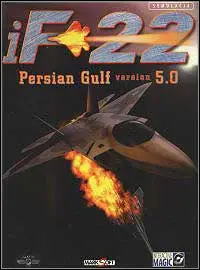
Version 5.0 of iF-22 was an improved compilation release. This compilation includes the expansion, featuring all 3 theaters, Bosnia, Ukraine and the Gulf. The texture storage had been improved resulting in a release on a single CD-ROM. Aircraft models have also been revised and improved.
The installer was changed to a 32-bit installer making it compatible with Win10. In this release the non-nuclear weapons delivery manual is missing.
Version 5.0.1 patch (March 1998)
This patch is applicable to the German language version only. The changes relate to keyboard functions:
The key combination [SHIFT] + [8] (open parenthesis) increases, and the combination [SHIFT] + [9] (close parenthesis) decreases the radar range.
The combination [SHIFT] + [ß] (question mark) selects the next surface-to-air weapon.
This patch is available from:
The Patches Scrolls, iF-22 Raptor v5.0, patch 5.01.
iF-22 v5.0 rerelease (March 2001)
This rerelease is identical to the April 1998 v5.0 release, the only difference being a slightly different build version number. Distributed on a single CD-ROM, it has the same improvements as the April 1998 v5.0 release. A 32-bit installer is used and the non-nuclear weapons delivery manual remains missing.
Narzoul's uiwindow.dll patch (June 2026)
Narzoul (of DDrawCompat fame) has found and provided a fix for the menu background colour issues present in iF-22. Taken from the DDrawCompat GitHub issue thread:
Meanwhile, I also found the issue with the menu colors. The game is using SetClassLong with GCL_HBRBACKGROUND to change the background brush of some built-in window classes (e.g. buttons). It passes a custom brush created with CreateSolidBrush to this function. Sometimes it sets this custom brush, sometimes it restores the original NULL brush. But at some point it deletes the brush (via DeleteObject) while it's still assigned to some of the classes. Worse, it keeps using the deleted brush and trying to assign it again and again, which clearly fails. I don't see a clear solution to this from a generic wrapper and I've no idea how this ever worked correctly. The only "workaround" I found is hex editing uiwindow.dll to bypass the problematic call to DeleteObject with the following hex replacement: 8B 86 68 32 00 00 85 C0 74 -> 31 C0 89 86 68 32 00 00 EB There should be only one instance to replace. Now this isn't the greatest solution, as this might cause a GDI handle leak instead. But after clicking around in the menus for a while I didn't notice any clear issues, so perhaps it's viable as a long term solution too, unless someone wants to find a better fix. Since this has nothing to do with DDrawCompat I'm unlikely to mess with this further.
For easy of use this has been converted into an xdelta patch, available below:
Retail media
Due to the age or the media and the drives required to read it, it is recommended to rip CD-ROM media to image files, to save wear and tear on media and the mechanical drives.
The CD-ROMs can be ripped to a data only .iso image format as there is no CD audio on the CDs.
Game management
It is recommended to use my game management strategy or similar strategy you may have developed. The recommended game management folders for iF-22 are:
cd - for any cd images.
conf - to store HOTAS configuration files.
docs - for documents.
install - for downloaded compatibility tool installation zip/exe files.
patch - to store any patches.
tools - as a compatibility tool installation folder.
The iF-22 management folders would be found in the following game folder (as an example):
D:\Games\Win\iF-22 SetupInstallation
Installation is a simple and straightforward process due to the iF-22 v5.0 32-bit installer being supported in Win10. It is recommended to install the game alongside the game management setup folder, e.g.
# Setup folder
D:\Games\Win\iF-22 Setup

# Game installation folder
D:\Games\Win\iF-22
The setup.exe should be run from the CD and the installation steps are shown below:
Beginning installation. Selecting an installation folder. Select the Custom installation size. Select all of the components. Selecting the Program folders, the default is fine. Ready to begin installation. Skip installing the Indeo video components. Skip the DirectX installation. Installation complete.
Earlier iF-22 versions
Earlier versions of iF-22 used a 16-bit installer, unsupported by Win10 and normally requiring the use of the OTVDM compatibility tool to run. However the 16-bit installer also checks the Windows version and will not allow the installation to proceed if it does not find Win95.
It is suggested to create a Win95 Virtual Machine (VM) using a VHD hard disk image with PCem (or reuse an existing Win95 VM if you have one). Missing device drivers, missing sound or default graphics are all fine, as long as iF-22 can be installed.
Once installed the VM can be shutdown and the VHD hard disk image mounted in Win10. The iF-22 installation folder can then be copied into Win10.
A video tutorial to building a PCem virtual machine for Win98 is available from PhilsComputerLab, PCem Windows 98 Setup (Pentium II +Voodoo 3, all files provided). The process for installing Win95 will be very similar.
Compatibility tools
This section covers the compatibility tools used to get iF-22 working and where to find them. It does not cover how to configure them, that comes later. It also covers some alternatives to the suggested toolset and some tools which were tried but didn't work (in case you wish to try some other tools).
It is recommended to download installation packages to the game management install folder for safekeeping and if things go badly the existing tools can be uninstalled and reinstalled using these installation packages, e.g.
# XOutput installation package
D:\Games\Win\iF-22 Setup\install\XOutput v3.3.2.zip
It is recommended to use the game management tools folder as a compatibility tool installation folder, if the tool can be installed to a selectable folder, e.g.
# XOutput
D:\Games\Win\iF-22 Setup\tools\XOutput.exe
If any of the following compatibility tools are already installed, they can continue to be used from their existing installation folder:
Delta Patcher
HidHide
Joystick Gremlin
ViGEm Bus Driver
vJoy
XOutput
DDrawCompat
DDrawCompat created by narzoul is the graphics wrapper used to provide compatibility with iF-22. The latest version is v0.7.1, however the standard release isn't used. Instead a patched wrapper has been created (based on v0.7.1) for the following issues in iF-22, identified and fixed by narzoul:
There is one more problem that hasn't been mentioned yet, because I think it only affects Windows 10 and 11. There is a new UserAdapterWindowClass (or SystemUserAdapterWindowClass in Windows 11) window class that tends to show up in the message loop for messages retrieved by PeekMessage/GetMessage. This causes an issue with this game where it stops rendering in the 3D scene after the first keypress, and only continues briefly after each further key press or whenever the mouse is moved. The problem is technically in the message loop of the game, because it does some crazy things: if PeekMessage returns FALSE, it uses lpMsg->hWnd anyway (even though PeekMessage doesn't fill it in this case, so it contains whatever garbage was there before), queries GWL_USERDATA with GetWindowLong, and if it's not 0, executes some callback function stored there. This callback function is presumably responsible for exiting the message loop and continuing the rendering. When the garbage value has the game's own window handle, then this works correctly, but when the window belongs to (System) UserAdapterWindowClass, which has a 0 value in GWL_USERDATA, the game just loops back to PeekMessage again and returns the same "garbage" value as long as no new messages enter the loop, causing an "infinite" rendering pause loop. I added a patch to DDrawCompat that tries to hides these special windows from PeekMessage/GetMessage, which seems to fix this issue. Additionally, I also found a fix for the Windows 8 FullscreenMode=borderless issue. Here is a combined patch for both of these issues:
The patch (ddraw.zip) is available in this DDrawCompat GitHub thread.
Delta Patcher
Delta Patcher, developed by marco-calautti is a utility to create and apply xdelta patches compatible with the xdelta tool developed by Joshua McDonald.
The recommended version is the latest 64-bit version, v3.1.6 (at time of writing), available from the Delta Patcher GitHub repository in Releases.
vJoy
vJoy is a virtual joystick driver, it is used to replace physical joystick/HOTAS controllers with a virtual controller. It is supplied as a suite of utilities including a configuration utility.
The recommended version is the latest jshafer817 release, vJoy v2.1.9.1 as this is fully compatible with Joystick Gremlin. It is available from the jshafer817 / vJoy GitHub repository in Releases.
Joystick Gremlin
Joystick Gremlin is the joystick/HOTAS profiling utility mapping physical controller inputs to a virtual joystick, provided by vJoy.
The recommended version is the latest one (at time of writing), Joystick Gremlin release 15. It is available from Joystick Gremlin Download. This site also provides a quickstart guide to using Joystick Gremlin.
HidHide
HidHide is a device firewall created by nefarius, hiding devices from any app not explicitly allowed through the firewall. It is often used in conjunction with vJoy and Joystick Gremlin to ensure a game can only access the vJoy virtual controller, whilst the physical controllers remain hidden from it.
Joystick Gremlin would be allowed through the HidHide firewall. When the firewall is active, only the vJoy virtual controller would be seen by a game. As Joystick Gremlin can still see the physical devices through the firewall it can still translate physical inputs into vJoy virtual controller inputs.
The recommended HidHide version is the latest one, HidHide Drivers v1.5.230, available from GitHub HidHide repository, Releases.
ViGEm Bus Driver
The ViGEm Bus Driver is a 'virtual Xbox 360 controller' driver (supporting the XInput library) created by nefarius. It can be thought of as vJoy for virtual Xbox 360 controllers. Unlike vJoy it does not come with it's own configuration utility The ViGEm Bus Driver is no longer under active development.
The recommended ViGEm Bus Driver version is the latest one, ViGEmBus Setup 1.22.0 "It's dead, Jim" Release available from GitHub ViGEm Bus Driver repository, Releases.
XOutput
XOutput, created by Ármin Csutorás, is a configuration utility for a virtual Xbox 360 controller provided by the ViGEm Bus Driver. XOutput is required as ViGEm does not provide a configuration utility. It takes a physical or virtual DirectInput controller and maps it to a virtual XInput controller. It can be thought of as a 'vJoy config tool/Joystick Gremlin' for virtual Xbox 360 XInput controllers.
The recommended XOutput version is the latest one, XOutput 3.32, available from GitHub XOutput repository, Releases.
RetroBridge
RetroBridge created by VOGONS forum member rkk, is multi wrapper suite for PowerVR, Glide, DDraw and DSound for all versions of Ultim@te Race, allowing the game to be played on Win10/11. It's use in getting iF-22 to run with joystick support is a completely unintended use.
RetroBridge provides a winmm.dll wrapper that can map an XInput controller into a virtual 2 axes, 4 button, 1 POV hat joystick that is compatible with iF-22. This is key in getting iF-22 joystick support working. RetroBridge was also tolerant of the DDrawCompat wrapper used in this tool chain.
RetroBridge (RetroBridge - 0.1.139 - Preview.zip) is available from the VOGONS forum thread, RetroBridge - A multi wrapper for PowerVR (SGL) + Glide + DDRAW + DSound for all versions of Ultim@te Race (1t/3t/Pro).
Alternative compatibility tools
The following tools may provide sufficient advantages over the above tool chain that some may wish to try.
x360ce
x360ce is a configuration utility for a virtual Xbox 360 controller provided by the ViGEm Bus Driver. It can be used in place of XOutput.
One of the advantages of x360ce is that it can be started with a default profile. This means it can be used in batch or PowerShell scripts when starting iF-22. XOutput requires the emulated controller to be manually started making it less suitable.
However the configuration of x360ce is more complex than XOutput.
The recommended x360ce version is the latest one, X360CE 4.17.15.0, available from GitHub x360ce repository, Releases.
JoystickGremlinEx
JoystickGremlinEx (or GremlinEx), created by muchimi, is a fork of the Joystick Gremlin project, supporting functions that would have been difficult to integrate with the Joystick Gremlins plugin facility. It is built as a 64-bit app using a later version of Python/QT.
Advantages over Joystick Gremlin:
GremlinEx will map physical controllers directly to a ViGEm virtual controller. This removes Joystick Gremlin, vJoy and XOutput/x360ce from the tool chain, replaced by GremlinEx.
Disadvantages over Joystick Gremlin:
GremlinEx is still a work in progress, later releases should be considered developmental releases and may not be stable.
GremlinEx uses the older Joystick Gremlin release 13 configuration model. Those accustomed to the release 14/15 model may find it tricky to use.
Encountering errors/exceptions during configuration should be expected.
Those familiar with the JG release 13 model may find the smaller tool chain easier to deal with, despite any issues. The latest GremlinEx version, M77 seems fairly stable at present. It is available from JoystickGremlinEx GitHub repository, Releases.
Unsupported tools
This section is for those that wish to try and improve on the tool chain. The following tools were tried but failed to provide adequate joystick support for iF-22. NOTE: This is not a criticism of the tools below, just that they were unable to help in getting iF-22 to support a joystick.
Gamepad Phoenix
Gamepad Phoenix is a tool for Windows to play any game (old or new) with any gamepad (old or new). Despite supporting the WinMM API, Gamepad Phoenix was unable to supply a joystick that could be used by iF-22.
Steam Big Picture
Steam Big Picture has gamepad support for games added to Steam, including non-Steam games. Despite adding iF-22 and configuring a controller, iF-22 could not find a joystick to use.
Xidi
Xidi created by Samuel Grossman provides both DirectInput and WinMM interfaces for games to use and communicates with XInput-based game controllers natively using XInput, translating between the two interfaces as needed. Despite supporting the WinMM API, Xidi was unable to add a suitable controller that could be used with iF-22.
However, Xidi in combination with Hookshot (also created by Samuel) was pivotal in discovering that WinMM API joystick functions were used by iF-22.
HOTAS config
The following section differs from the usual HOTAS config due to the complexities involved in configuring a joystick/HOTAS for use with iF-22.
HOTAS strategy
Before considering detailed steps it is worth considering the overall approach. This can be summarized as the following:
Joystick Gremlin provides a profile mapping from physical controllers to a vJoy virtual controller.
HidHide is used to hide physical controllers from other tools/iF-22.
XOutput or x360ce provides a profile mapping from a vJoy virtual controller to an Xbox 360 XInput virtual controller (provided by the ViGEm driver).
RetroBridge provides a mapping from an XInput virtual controller to the RetroBridge emulated joystick supported by iF-22.
When using Joystick GremlinEx the steps become:
Joystick GremlinEx provides a profile mapping from physical controllers to an XInput virtual controller (provided by ViGEm).
HidHide is used to hide physical controllers from other tools/iF-22.
RetroBridge provides a mapping from an XInput virtual controller to the RetroBridge emulated joystick supported by iF-22.
Using Joystick Gremlin(Ex) allows unused physical controller buttons to be mapped to keyboard commands used in IF-22.
XOutput is prone to crashing or freezing when more than one controller is mapped to a virtual XInput controller. It works far better with a single controller (the vJoy virtual joystick in this scenario) mapped to a virtual XInput controller.
x360ce will freeze and become non-responsive once iF-22 is quit. It can be closed from the taskbar or PowerShell script. This occurs after the game is quit, so it is considered a minor issue.
Although the RetroBridge emulated joystick only supports 2 axes, the HOTAS config will use 4 axes for any future updates that add support for throttle and rudder axes.

Creating the vJoy virtual joystick
If the vJoy virtual joystick driver is not installed then:
Download the driver install package (vJoySetup.exe) and place in the game management install folder for safe-keeping.
Run the installer and use the default installation folder.
If the vJoy virtual joystick driver is installed it can continue to be used.
The configuration tool should be run as an Administrator.
The following vJoy config was used, as shown in the screen shot. This is equivalent to the following vJoy commands:
vJoyConfig.exe Enable on
vJoyConfig.exe 1 -f -a X Y Z Rz -b 4 -p 1
To disable vJoy:
vJoyConfig.exe -r
vJoyConfig.exe Enable off
Creating the Joystick Gremlin(Ex) profile
If Joystick Gremlin is not installed then:
Download the driver install package (Joystick.Gremlin.R15.zip) and place in the game management install folder for safe-keeping, or similar for Joystick GremlinEx).
Unzip to a Joystick Gremlin folder in the game management tools folder, or if you wish to use it for further games in the future, to a more appropriate higher level folder, e.g.
D:\Games\Win\JoystickGremlin
D:\Games\JoystickGremlin
If Joystick Gremlin(Ex) is already installed it can continue to be used.
As the game is running as Administrator, Joystick Gremlin must also run as Administrator for any mapped keypresses to be registered in the game.
Creating the profile is not covered as it will be specific to the physical joystick/HOTAS hardware present.
It is recommended to store the iF-22 profile in the game management conf folder.
To run from the command line or script:
joystick_gremlin.exe --start-minimized --enable --profile "D:\Games\Win\iF-22 Setup\conf\iF-22.xml"Configuring HidHide
If HidHide is not installed then:
Download the HidHide install package (HidHide_1.5.230_x64.exe) and place in the game management install folder for safe-keeping.
Run the installer and use the default installation folder.
If HidHide is already installed it can continue to be used.
The following screenshots show an example HidHide configuration (the config will be specific to the physical joystick/HOTAS hardware present):
Only Joystick Gremlin/Ex needs to see through the firewall. Only physical devices should be hidden.
Only Joystick Gremlin and/or Joystick GremlinEx need to see the hidden physical devices through the HidHide firewall. The HidHide entries are automatically added and should be left alone.
Only physical devices need to be hidden, the vJoy virtual joystick should remain visible.
To enable HidHide from the command line or script:
HidHideCLI.exe --cloak-onTo disable:
HidHideCLI.exe --cloak-offCreating the ViGEm virtual Xbox 360 controller
If ViGEm, XOutput or x360ce is not installed then:
Download any missing tools: ViGEm install package (ViGEmBus_1.22.0_x64_x86_arm64.exe), XOutput (XOutput.zip) or x360ce (x360ce.zip) install packages and place in the game management install folder for safe-keeping.
ViGEm: Run the installer and use the default installation folder.
XOutput/x360ce: Unzip to an XOutput/x360ce folder in the game management tools folder, or if you wish to use it for further games in the future, move it to a more appropriate higher level folder.
If ViGEm or XOutput is already installed it can continue to be used. x360ce can continue to be used if it does not have a default configuration in use.
Before configuring XOutput/x360ce ensure Joystick Gremlin is running (as Administrator) and the iF-22 profile is enabled.
XOutput
The following screenshots show the XOutput configuration mapping the vJoy virtual joystick (above) to a virtual XInput controller:
Add a new controller in the bottom window. Only the vJoy joystick should be seen. 4 axes (note the inverted y-axis), 4 buttons and 1 hat configured. The mapping interface move the controller for an axis or click a button to map a button.
Once the XInput controller is started, XOutput should be minimised to the taskbar and left running until the game is quit.
x360ce
x360ce is a little more complex than XOutput, however the following screenshots show the XOutput configuration mapping the vJoy virtual joystick (above) to a virtual XInput controller:
Mapping the axes and buttons to the virtual controller. The vJoy joystick is mapped to controller 1. The only joystick should be the vJoy virtual joystick. There should be no issues listed in the Issues tab.
It is recommended to run x360ce as Administrator.
A 'default' profile is a profile used when the x360ce utility is running, this is shown in the Game dropdown menu at the top of each page.
The Issues tab should be checked to ensure there is nothing wrong with the installation, as shown, it should be empty.
In the Settings tab ensure the vJoy virtual joystick is mapped to controller 1.
In the x360ce config the y-axis is not inverted (compare this to XOutput where the y-axis is inverted).
The 'Enable 1 mapped device' checkbox starts and stops controller emulation.
Once the XInput controller is started, x360ce should be minimised to the taskbar and left running until the game is quit.
Scripting
The following PowerShell script will start and configure the compatibility tools for an iF-22 joystick, it can be used as a Playnite script:
# Enable vJoy
Start-Process -Wait "C:\Program Files\vJoy\x64\vJoyConfig.exe" -ArgumentList "Enable on" -Verb RunAs
Start-Process -Wait "C:\Program Files\vJoy\x64\vJoyConfig.exe" -ArgumentList "1 -f -a X Y Z Rz -b 4 -p 1" -Verb RunAs

# Enable HidHide
Start-Process -Wait -FilePath "C:\Program Files\Nefarius Software Solutions\HidHide\x64\HidHideCLI.exe" -ArgumentList '--cloak-on'

# Enable JG
Start-Process -FilePath "D:\Games\Joystick.Gremlin.R15\joystick_gremlin.exe" -ArgumentList '--start-minimized --enable --profile "E:\IF-22 Setup\conf\if-22v5.xml"'
Start-Sleep -Seconds 5

# Enable x360ce (minimised to taskbar)
Start-Process -FilePath "D:\Games\x360ce\x360ce.exe" -WindowStyle Minimized
Start-Sleep -Seconds 10
The following PowerShell script will stop and reset the compatibility tools used to create the joystick, it can be used as a Playnite script:
# Disable x360ce
(Get-WmiObject -Class Win32_Process -Filter "name = 'x360ce.exe'").Terminate()

# Disable JG
(Get-WmiObject -Class Win32_Process -Filter "name = 'joystick_gremlin.exe'").Terminate()

Start-Sleep -Seconds 10

# Disable HidHide
Start-Process -Wait -FilePath "C:\Program Files\Nefarius Software Solutions\HidHide\x64\HidHideCLI.exe" -ArgumentList '--cloak-off'

# Disable vJoy
Start-Process -Wait "C:\Program Files\vJoy\x64\vJoyConfig.exe" -ArgumentList "-r" -Verb RunAs
Start-Process -Wait "C:\Program Files\vJoy\x64\vJoyConfig.exe" -ArgumentList "Enable off" -Verb RunAs
Applying the RetroBridge WinMM wrapper
Download the RetroBridge install package (RetroBridge - 0.1.139 - Preview.zip) and place in the game management install folder for safe-keeping.
Unzip only the following files into the iF-22 installation folder:
retrobridge.config.yml
retrobridge_core.dll
winmm.dll
Configuration
The following section covers the remaining compatibility tools and settings required to get iF-22 running.
Configuring DDrawCompat
The DDrawCompat patch for iF-22 (ddraw.zip) should be downloaded and placed in the game management patch folder for safe-keeping.
The ddraw.dll file in the zip archive should be extracted to the iF-22 installation folder.
The configuration file required by DDrawCompat is available below. It should downloaded to the game management conf folder for safe-keeping.
The DDrawCompat.ini file in the zip archive should be extracted to the iF-22 installation folder. The config is as follows:
# DDrawCompat config file for iF-22

AlternatePixelCenter = on
Antialiasing = msaa4x
CapsPatches = DDCAPS.dwCaps2|=0x800
FullscreenMode = exclusive
ViewportEdgeFix = scale(50)
Applying narzoul's uiwindow patch
The next step is to patch the uiwindow.dll file with Delta Patcher to fix the menu graphics.
The Delta Patcher (windows_bin_x86_64.zip) should be downloaded and placed in the game management install folder for safe-keeping.
The contents of the Delta Patcher zip archive should be extracted to a delta patcher folder in the game management tools folder.
The uiwindow-xdelta.zip archive should be downloaded and placed in the game management patch folder for safe-keeping.
The contents of the archive (uiwindow.xdelta) should also be extracted to the patch folder.
Run the Delta Patcher tool, select the original uiwindow.dll file in the iF-22 installation folder. Select the uiwindow.xdelta patch in the patch folder.
Click Apply patch and the success dialog box should be displayed as shown in the gallery below:
Specify the original and patch files, then apply the patch. Successfully patched.
Optionally copy the patched uiwindow.dll file from the iF-22 installation folder to the patch folder for safe-keeping.
Compatibility settings

The only compatibility settings required are the Run this program as an Administrator setting on the game executable (if22.exe), as shown in the screenshot.
Running
The following covers the steps to setup controllers and run the game. If this is the first time running the game, consult First run for some specific actions to be performed.
Open the vJoy config tool and enable vJoy. Configure the device to have X, Y, Z and Rz axes, 4 buttons and 1 POV hat.
Open HidHide and hide devices.
Open Joystick Gremlin as an Administrator and enable the iF-22 profile.
Start the ViGEm XInput virtual controller:
XOutput: Open XOutput and start the controller used by iF-22.
x360ce: Open x360ce as Administrator, if the profile is not enabled then enable it.
Run iF-22 (if22.exe).
If everything has worked the title page should be displayed, clicking on the cockpit should take you to the main menu, as shown below:
Title page. Main menu.
After the game has closed:
Stop the ViGEm XInput virtual controller:
XOutput: Stop the controller used by iF-22 and close XOutput.
x360ce: Disable the profile and close x360ce.
Disable the iF-22 profile and close Joystick Gremlin.
Disable device hiding and close HidHide.
Disable vJoy and close the config tool.
First run
When first running the game, a crash/freeze will occur unless the following actions are taken:
Start the game, and continuously click the mouse to skip intro videos.
The game will automatically open the joystick calibration screen, click either Accept or Cancel.
The game will automatically start an instant action mission. Use Ctrl + Q to quit the mission.
Continuously click the mouse to skip a video.
When back at the main menu, select System Setup and check the Disable animations checkbox.
In-game configuration
From the main menu, System Setup will allow you to configure the game. The option to Calibrate the joystick is on the System Setup menu, as shown below.
If not already done so the Disable animations checkbox should be checked.
All graphics settings can be maximised.
If all components were installed, all of the theater files will be shown on the Theater Setup page. If the iF-22 CD/image is mounted in Win10, you will have the option of copying any missing optional theater files from the CD onto the hard disk, as shown below.
System Setup menu. Joystick calibration menu. Theater Setup menu.
Documents
As with any sim the documentation is very important to properly use the sim. The available documents are shown below:
iF-22 Manual (pdf download)
Steam, All Games, Simulation Games, iF-22, View the manual.
NONNUCLEAR WEAPON DELIVERY MANUAL
Styled to look like an official USAF document, but published by Interactive Magic, containing iF-22 sim keyboard commands. This manual provides details on weapons management and use within the sim. It is available as a pdf document on the CD of early iF-22 retail releases.
iF-22 Reference Card
Lists the 2 and 4 button joystick layout, keyboard layout and command reference.
Example video
Finally...
Credit and thanks goes to:
GamePressure, Internet Archive and The Patches Scrolls for hosting iF-22 patches.
Narzoul for the DDrawCompat and uiwindow patches and the DDrawCompat config.
PhilsComputerLab for his PCem tutorial video.
marco-calautti for Delta Patcher.
jshafer817 for the vJoy release.
The work done by the Joystick Gremlin team.
nefarius for the ViGEm Bus Driver.
Ármin Csutorás for XOutput.
rkk for RetroBridge.
The work done by the x360ce team.
muchimi for Joystick GremlinEx.
Bernhard Schelling for Gamepad Phoenix.
Steam for Steam Big Picture and hosting documentation.
Samuel Grossman for Xidi.
Good hunting!

Comments