


Jane's F-15 part 1: A strike on incompatibility!
Updated: Jan 3

A guide to running Jane's Combat Simulations: F-15 released in 1998 by Electronic Arts.
This guide will be running the sim natively under Win10, considered in the past to be notoriously tricky, due to severe compatibility issues under later versions of Windows.
Although untested, it is hoped this strategy will increase compatibility on Win11 platforms.
Strategy
This guide uses a slightly different strategy than others. The F-15 installer adds Windows libraries to the installation folder. The libraries in the installation folder are used in preference to the standard Windows libraries. Given F-15 was released in 1998, these are some very old libraries which may have compatibility issues under later versions of Windows.
The strategy employed, is to disable these libraries causing the standard Windows system libraries to be used. This seems to increase compatibility with Windows (Win10 at least) and later versions of the Glide and DirectX wrappers.
Other libraries are replaced with later versions which seem to be more compatible with Win10. This provides a better starting point for adding wrappers and setting Windows compatibility options, than an original F-15 install using very old libraries.
Version and patch history
There have been at least two retails editions of F-15. The original 'big-box' retail edition from 1998 was distributed on a single CD-ROM and included the Casual Play Guide, Expert Flight Manual, Setup & Troubleshooting guide and keyboard reference. Another weighty edition Jane's sims were famous for. This edition installs v1.02F.
A later Electronic Arts CD-ROM Classics edition was released. This provided much of the documentation as PDF documents and included the F-15 v1.17F D3D/JCN Update. This edition was distributed on 2 x CD-ROM, for this reasons. There aren't any additional mods or expansions bundled with this release but there are demos/previews of other Jane's sims.
Patches
All official patches are available from GameFront. All patches (official/unofficial) are also available from the Internet Archive at Jane's F-15 patch collection.
MovSpace.exe utility
Released in Apr 1998, this utility removes installed F-15 movies from the hard disk and updates the Windows registry to read them from the CD.
This may be of interest to those using period correct legacy hardware, although disk space usage would probably not be a concern with modern storage solutions, otherwise this utility should not be needed.
F15 Patch v1.12F
The first patch was released on 13 Jul 1998 and updates the version to v1.12F. This patch is distributed as an exe file and must be installed, although it is compatible with Win10. This is a very comprehensive patch, including:
Crash fixes.
Multiplayer improvements.
Wrapper screen improvements.
Mission Builder improvements.
AI behavior enhancements and changes.
Flight Model enhancements and changes.
Avionics systems enhancements and changes.
Weapons system enhancements and changes.
Other miscellaneous improvements and changes.
This patch is not recommended having been superseded by the F-15 v1.17F D3D/JCN Update patch.
F15 Installation Utility
The F15 Installation Utility was released 15 Jul 1998. It fixes many installation issues and provides an 'alternate' install option, similar to the large option but leaving movie and terrain files on the CD.
This patch is recommended if the cd installer experiences problems when installing.
F-15 v1.17F D3D/JCN Update
This patch was released on 20 Nov 1998 and adds support for Direct3D video cards and multiplayer support with Jane's Combat Net (JCN). This patch is distributed as an exe file and must be installed, although it is compatible with Win10. It is a cumulative patch including the fixes and enhancements from F15 Patch v1.12F
This is a recommended patch.
F15fixed
This fan made patch was released 16 May 2011, distributed as a zip file and created by XRAY/vedmysh. It provides fixes for the KARKBOMB single mission crash, occurring few seconds after starting and reduces crashes when using JUMP or time acceleration. This is a file replacement patch, replacing the existing F15.exe file. You can read more about this patch.
This is a recommended patch, available from MediaFire.
Retail media
This guide assumes any physical cds will be ripped to an image file, to reduce wear and tear on media and drives. The retail version of F-15 does not contain cd audio and can be ripped to a data only .iso format.
At present there is no release of the game on digital platforms.
Game management
As a windows game running natively, the installation folder will be created by the F-15 installer. However some limited game management is still useful for files used in the F-15 setup.
The installation folder and setup files for F-15 and other Windows games can be found in the same folder (my own, as an example):
D:\Games\Win\<Game folders>
D:\Games\Win\Janes F-15 Setup
The following setup folders are used:
conf - to store any HOTAS profile configuration files.
docs - to store any useful documents, manuals, etc.
patch - to store a copy of recommended patches, wrappers, zip archives or installers.
cd - to store any cd images.
Installation
The CD installer should work under Win10 and successfully install F-15 without issue. If issues are encountered, it's recommended to use the F15 Installation Utility as the installer.
Patching
Patching should be performed in the following order:
The F-15 v1.17F D3D/JCN Update should work under Win10 and successfully patch F-15 without issue. F-15 fixed is a file replacement patch, replacing the F15.exe file.
Libraries
A key part of this strategy is the disabling (or removal) of older less compatible libraries in the F-15 installation folder with the Windows platform system libraries or more compatible libraries.
Disabling libraries
These libraries will be found within the F-15 installation folder. There are a couple of methods that can be used to disable them:
Delete the library (not recommended).
Rename the library, as this allows the lib to be restored, e.g. adding .bak to the filename, mfc42.dll becomes mfc42.dll.bak (preferred).
The following libraries should be disabled:
mfc42.dll
mfc42d.dll
mfco42d.dll
msvcrt.dll
msvcrtd.dllNote: The 'd' versions of the libraries are debug versions and it seems odd they were installed alongside the standard versions.
Replacing libraries
F-15 uses a 1998 version of the Miles Sound System (MSS) library, as it is not part of the Win10 system libraries, the old version must be disabled (using the same method) and then replaced with a newer version that is more compatible. The library to be disable is:
mss32.dllAn MSS library is available from this VOGONS post by DosFreak. To replace the MSS library:
Download Miles(use 7z as ext).zip and rename to Miles.7z.
Extract the contents of Miles.7z (with 7zip).
For Win10: Copy the 32-bit library 6.0a-mss32.dll or 6.0i-mss32.dll into the F-15 installation folder. These are known to work on Win10.
For Win11: Copy the 32-bit library 6.0i-mss32.dll into the F-15 installation folder. This has been reported as working on Win11.
Rename to mss32.dll.
That completes the required library changes.
Graphics wrappers
F-15 requires the use of nGlide providing Glide emulation for the flight engine and DDrawCompat providing DirectDraw compatibility for the menu pages.
nGlide

Glide emulation is provided by the latest version of nGlide v2.10. Available from Zeus Software in nGlide download. nGlide is installed as a system level Glide wrapper as explained further in Glide Wrappers: Last Man Standing or Peace and Harmony?
Once installed the nGlide configurator is used to set the nGlide settings as shown in the screenshot.
DDrawCompat
DirectDraw emulation is provided by the latest version of DDrawCompat v0.6.0. Available from DDrawCompat GitHub releases. To install:
Copy the ddraw.dll into the F-15 installation folder.
A new DDrawCompat config file, DDrawCompat.ini, should be created in the F-15 installation folder, using a text editor (e.g. Notepad).
Add the following lines to the DDrawCompat.ini:
CpuAffinity=all
DpiAwareness=unaware
VSync=on(1)Update: The latest version is DDrawCompat v0.7.0 and continues to work well with F-15.
Program compatibility settings
There are number of compatibility settings that should be applied to the F15.exe Properties. In the Compatibility tab:
Check Disable fullscreen optimization.
Make the following changes to Change high DPI settings:
In High DPI scaling override, check Override high DPI scaling behaviour.
Scaling performed by: System.
Settings shown in the screenshots below:
F-15.exe Compatibility settings F-15.exe high DPI settings
HOTAS config
Joystick, throttle and rudder pedals are supported. Configuring axes may not be required if your HOTAS has 4 axes or less. When using devices totaling more than 4 axes, a virtual controller can be used, limited to 4 axes, as F-15 will automatically try to detect the HOTAS controller.
For those using controllers from multiple vendors, the vJoy/Joystick Gremlin combination may be required instead of vendor specific HOTAS profile software. You may also have to use HidHide as a device firewall, to hide your real controllers, so only the vJoy virtual controllers are detected by F-15.
The physical axes to Windows axes were configured as follows:
Physical axis | Windows axis |
Joystick x-axis | DX_X_AXIS |
Joystick y-axis | DX_Y_AXIS |
Throttle | DX_Z_AXIS |
Rudder | DX_ZROT_AXIS |
Running
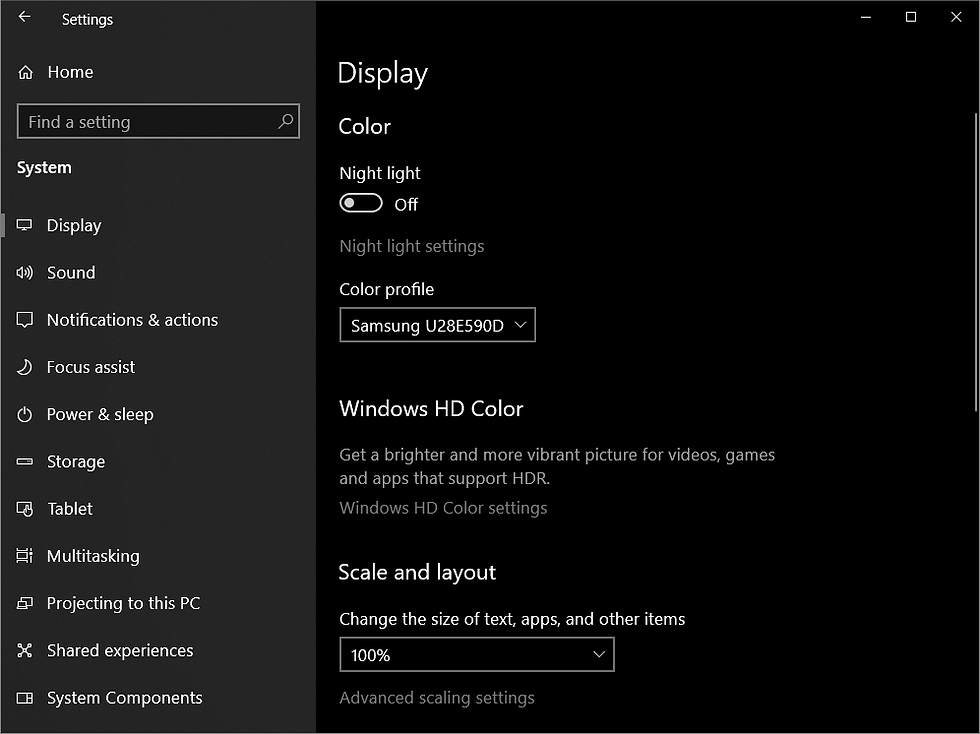
It is recommended to run F-15 at 100% scaling, to prevent scaling issues in the menu pages, as shown in the screenshot:
Configuration
The following are configuration options that can be applied and are of particular interest.
In-game options
In Graphics, it's recommended to check No Page Flipping for smoother frame rates.
In Controls, it's recommended to pay particular attention to the Pitch and Roll Dead Band. A higher Dead Band can make controlling the aircraft more difficult.
Graphics options Control options
Additional key bindings
There are additional key binding commands not configured by default. They should be applied to the following files depending on language:
f15keys.ini - English
f15keysf.ini - French
f15keysg.ini - German
Command | Description |
FORMATION_LIGHTS | Toggles formation lights. |
COCKPIT_LIGHTS | Toggles internal cockpit lighting. |
DISPLAY_FPS | Displays FPS on the HUD. |
MEET_SMUT | Toggles the flying pig easter egg. |
Depending on play style, these commands can be added to [Casual], [Expert] or both sections. The ini file can be edited with a text editor, e.g. Notepad. The format is shown in the following example:
...
KEY_CTRL_Z=FORMATION_LIGHTS
KEY_CTRL_X=COCKPIT_LIGHTS
KEY_CTRL_V=DISPLAY_FPS
KEY_CTRL_N=MEET_SMUT
...
Female wingman
To enable the female wingman voice:
Copy the regit.exe utility from the F-15 cd into the F-15 installation folder.
Set the Compatibility Properties on regit.exe to Run this program in compatibility mode for: Windows 98 / Windows ME (see screenshot).
Open the regit.exe utility, a number of values and data should be shown (see screenshot).
Add the following value/data item:
Value: woman (all lowercase)
Data: 1
Close the regit.exe utility.
regit.exe compatibility settings regit.exe, note the newly added 'woman' value.
Example video
Finally...
As usual a number of individuals are credited and thanked for their contribution in creating this guide:
Damson for an alternative method, this method borrowed heavily from.
DosFreak for the VOGONS post with additional Miles Sound System libraries.
XRAY/vedmysh for the F15fixed patch.
If anyone can confirm if this method also works with Win11 or the MSS library also works with Win11, please let me know and I'll update this article.
Good hunting!


Thanks for this! I have one question, I have everything working thanks to this guide except that when I open the controls menu, I can't scroll it. The JoyHatU input stays highlighted as though the game thinks that button is constantly being pressed, even with no joystick or any USB devices connected. Is there any solution for this?
It works perfectly for me under Windows 11 Pro, version 25H2. Thank you so much for the great instructions!!
Works on Windows 10 with nGlide, top quality as on the above video, without crash on exit. It worked the same way on Win 11, until some updates a few months ago. 😠
Win 11 now CTD.
I always refer to the articles on your website.
On my PC environment (Windows 11 Pro 25H2 Japanese edition), as long as I use Direct3D, the game runs stably with DDrawCompat.
However, since version 0.7.1 produces some visual noise, I am using version 0.7.0 instead.
When using 3DFx, the game launches, but the program crashes upon exiting.
Below is the DDrawCompat.ini configuration I am currently using, for your reference:
DpiAwareness = gdiscaled
DisplayRefreshRate = 60
DisplayAspectRatio = 4:3
FullscreenMode = borderless
VSync = on(1)
Antialiasing = msaa(4)
BltFilter = bilinear
TextureFilter = af16x
PalettizedTextures = on
ResolutionScale = app(2)
CpuAffinity = 1
GdiInterops = all
ResolutionScaleFilter = bilinear
Thank you for maintaining such an excellent website!
I am the last guy! FOR Windows 11 use the 6.0i-mss32.dll! THE GAME NOW WORK ON WIN 11!!!
Thanks for the GUIDE! :)