


Eurofighter Typhoon: Storming in Windows
Updated: Apr 12

A guide to running the DID/Rage 2001 sim, Eurofighter Typhoon and Eurofighter Typhoon: Operation Icebreaker (2002), natively in Windows 10. Not considered one of DIDs greatest as during mid development the planned sim, which was envisioned as a evolution of EF2000, Air Dominance Fighter (ADF) or Total Air War (TAW) underwent a change of direction to become a more casual sim when DID was bought out by Rage.
This guide will concentrate on the retail editions, however those having problems running the digital editions on Win10/11 may benefit from some of the fixes described later. The retail editions have not been tested on Win11 but these fixes may provide a Win11 compatible solution.
Note: Many of the fixes are registry fixes performed by running an appropriate .reg file. You should be comfortable using the Registry Editor before attempting these fixes.
Strategy
This guide will be installing and configuring both the original retail edition and the gold edition including the Operation Icebreaker expansion. The guide will be covering: a version and patch history, installation and patching on Windows 10 including the registry fixes required to make it run and the necessary compatibility wrappers.
During the remainder of this guide the following abbreviations will be used, Eurofighter Typhoon (Typhoon), Eurofighter Typhoon: Operation Icebreaker (Operation Icebreaker or Icebreaker).
Version & patch history
The following is brief look at the versions and patches available.
Eurofighter Typhoon
The initial retail release was in May 2001 on a single CD-ROM. The game uses a 32-bit installer making it compatible with Win10. This initial retail version is v1.2 according to the release notes (prepared in Nov 2000). This edition uses Safedisc v2.10.030. The game uses DirectX 8.0 which caused a number of issues with joysticks and HOTAS controllers at the time (see HOTAS config).
The release notes are shown below:
Eurofighter Typhoon v2.1 patch
The Eurofighter Typhoon v2.1 patch, released in March 2002, addresses three main issues:
Fixes all known joystick and throttle problems.
Fixes Windows XP compatibility problems.
Fixes all previous bugs.
This patch also has the added benefit of removing DRM from the game executable.
The patch is distributed in as a zip or 7zip archive containing either a set of executable installers to apply a new game executable (typhoonpatch.exe) and registry fixes (typhoon_registry_fix.exe), or containing a file replacement game executable (typhoon.exe) and a set of registry fix files (.reg).
The executable installers are 32-bit making them Win10 compatible. Due issues with DirectX 8 and joystick/HOTAS controllers the registry fixes revert to DirectX 7 controller support. The release notes are included below:
The patch is recommended for Eurofighter Typhoon, initial retail release only. This patch can be obtained from:
Internet Archive (file replacement patch)
PCGamingWiki (executable installers)
soggi.org (executable installers)
Eurofighter Typhoon: Operation Icebreaker (Gold Pack)
This is not so much an expansion pack but an extended edition, containing both the original game and a new Operation Icebreaker campaign in which Russian forces have taken Iceland. In addition it includes new weather effects and the official strategy guide is included. It was released in May 2002 and is pre-patched with the Version 2.1 patch.
The installer is 32-bit making it Win10 compatible. This is the preferred retail edition to obtain, as it can be considered the optimum retail edition. This edition uses Safedisc v2.60.052. The additional Operation Icebreaker release notes are included below:
Eurofighter Typhoon: Operation Icebreaker no cd patch
This patch is crucial in allowing WIn10 to run Icebreaker as it removes the Safedisc DRM which is not supported by Win10. This is an unofficial patch created by C.L.O.I.E in June 2002. It is a file replacement patch replacing Typhoon.exe with a version without Safedisc. The patch is distributed as ACE compressed file (.ace).
This patch is available from GameCopyWorld. The required patch is Eurofighter Typhoon: Operation Ice Breaker [ENGLISH] Fixed EXE.
Eurofighter Typhoon (Steam digital release)
This digital edition is believed to be equivalent to the original retail Eurofighter Typhoon, patched to version 2.1. It does not include the Operation Icebreaker campaign or enhancements. It was released in 2014 and again in 2018 by different publishers.
Eurofighter Typhoon (Zoom digital release)
This digital edition is believed to be equivalent to the original retail Eurofighter Typhoon, patched to version 2.1. It does not include the Operation Icebreaker campaign or enhancements. It was released in 2021 but was replaced on the Zoom platform with an enhanced release, so is no longer available.
Eurofighter Typhoon: Gold Edition (Zoom digital release)
The Zoom platform digital edition is believed to be equivalent to the Eurofighter Typhoon: Operation Icebreaker (Gold Pack) retail edition. It was released in 2023. This is currently the only digital release of the extended Operation Icebreaker (Gold Pack) edition.
Retail media
This guide assumes any physical cds will be ripped to an image file, to reduce wear and tear on media and drives. The retail versions of Eurofighter Typhoon and Operation Icebreaker do not contain cd audio and can be ripped to a data only .iso format.
Due to the Safedisc DRM present on both disks, errors will be encountered on the first 10000 sectors, as the disk is read. This means the ripping process will take an extended amount of time.
Eurofighter Typhoon without the expansion is available digitally on Steam. Eurofighter Typhoon: Gold Edition is an extended digital edition available on the Zoom platform.
Game management
As a windows game running natively, the installation folder will be created by the Eurofighter Typhoon installer. However some limited game management is still useful for files used in the setup.
The installation folder and setup files for Eurofighter Typhoon and other Windows games can be found in the same folder (my own, as an example):
D:\Games\Win\<Game folders>
D:\Games\Win\Eurofighter Typhoon Setup
The following setup folders can be used:
cd - to store any cd images.
conf - to store any HOTAS profile configuration files.
docs - to store any useful documents, manuals, etc.
patch - to store a copy of recommended patches or compatibility tools.
Installation & patching
This section covers installation and patching of both Eurofighter Typhoon and Operation Icebreaker.
Installation

Due to the Safedisc DRM it is recommended to mount the discs using tools which support Safedisc, e.g. DEAMON Tools Lite.
It is also recommended to run the installer (setup.exe) as an administrator as shown in the Setup.exe Properties dialog.
Eurofighter Typhoon
The install is compatible with Win10 and the process is shown in the gallery below. It follows a standard install process, the only points of note are:
Once the game is copied a warning is displayed that a reboot will be required if DirectX is installed. However this should be unnecessary under Win10.
When asked to setup DirectX, select Close. A reinstall of DirectX is not necessary and may damage the existing DirectX installation.
Choosing a language Installation begins Licence agreement Choosing a destination folder Choosing a program group File copying DirectX setup warning DirectX setup
Eurofighter Typhoon: Operation Icebreaker
The install is compatible with Win10 and the process is shown in the gallery below. The game may check the version of DirectX installed but should not make any changes.
Choosing a language Installation begins Licence agreement Choosing a destination folder File copying notification File copying Installation complete
Patching
The following are the patching steps for Typhoon and Icebreaker. The purpose of patching is apply fixes and remove the Safedisc DRM which is no longer supported in Win10/11.
Eurofighter Typhoon
Eurofighter Typhoon is patched with the Version 2.1 patch. There is both a executable patch version and a file replacement patch version. This patch removes the Safedisc DRM. The following shows the process for the executable patch, points to note are:
The patch requires the patch installer, typhoonpatch.exe to be run.
The patch replaces the game executable and extracts a registry fix, ForceDX7JSOn.reg.
The Registry Editor dialogs appear as the registry fix is run. This fix switches to DirectX 7 axes.
If this is incompatible with your HOTAS hardware the other patch executable, typhoon_registry_fix.exe can be run to return to DirectX 8 axes, (see HOTAS config).
Patch instructions Adding registry keys Successful registry change
The file replacement version of this patch comprises of the following files:
Typhoon.exe | A replacement game executable with fixes applied and Safedisc removed. |
ForceDX7JSOn.reg | A registry fix to use DirectX 7 controller axes. |
ForceDX7JSOff.reg | A registry fix to return to using DirectX 8 controller axes. |
To apply the patch simply copy Typhoon.exe to the game installation folder replacing the existing file. Refer to HOTAS config for further details on the registry fixes.
Eurofighter Typhoon: Operation Icebreaker
Eurofighter Typhoon: Operation Icebreaker is patched with the no cd patch. As this uses the ACE compressed format, standard tools are not compatible. The preferred tool is PeaZip. The recommended distribution is Windows Portable 64 bit as this can be extracted to a folder and removed easily. An additional unace plugin is required by PeaZip to open ACE archives.
The replacement Typhoon.exe file should be extracted and copied into the installation folder, replacing the existing file.
Compatibility settings
The following are the recommended compatibility settings for both Typhoon and Icebreaker. To access, right clicking on an executable file, select Properties and navigate to the Compatibility tab.
Typhoon.exe |
|
config3dr2000.exe |
|
Registry fixes
The following are the registry fixes required by both Typhoon and Icebreaker. Following this the registry fixes specific to Typhoon only are covered.
Ensure registry settings have been applied by running typhoon_2000.reg.
Software Transform and Lighting (SWTnL)
There are registry settings to force the game to use software transform and lighting (SWTnL). The registry fixes can be found at the following locations:
Eurofighter Typhoon | On the installation cd/cd image in the config\SWTnL folder. |
Operation Icebreaker | In the X:\<installation>\regkeys folder. |
The following files are present:
ForceSWTnLOff.reg | Force software TnL off, to use hardware TnL. (recommended) |
ForceSWTnLOn.reg | Force software TnL on |
SWTnLReadMe.txt | Short description (Eurofighter Typhoon only) |
Font Support (optional)
There are registry settings to modify the texel origin used by 3Dream for rendering text. They should be used if the in-game text appears corrupted. This issue may only affect certain hardware, so is considered optional.
The registry fixes can be found in the following locations:
Eurofighter Typhoon | On the installation cd/cd image in the config\FontSupport folder. |
Operation Icebreaker | In the X:\<installation>\regkeys folder. |
The following files are present:
AlternativeFontTexelAlignmentOff.reg | Sets a centre texel origin used by 3Dream. |
AlternativeFontTexelAlignmentOn.reg | Sets an alternative texel origin used by 3Dream. |
FontReadMe.txt | Short description (Eurofighter Typhoon only) |
Eurofighter Typhoon only
When trying to run the game the following error may be encountered (see dialog). This indicates a required registry entry could not be found. The registry entry has been added just not in a registry location the game is expecting when running under Win10.
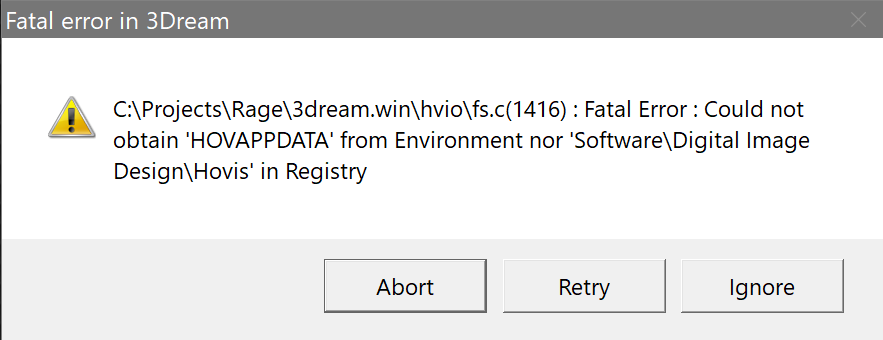
The registry entry is HOVAPPDATA and can be found in:
Computer\HKEY_CURRENT_USER\SOFTWARE\Digital Image Design\TyphoonTo correct this issue:
Add a new key named Hovis to:
Computer\HKEY_CURRENT_USER\SOFTWARE\Digital Image DesignAdd a new String Value to the key, named HOVAPPDATA.
Set the Value data to your installation folder, this should be identical to the HOVAPPDATA string value already present (e.g. D:\Games\Win\Eurofighter Typhoon). Note: Double quotes around an installation path containing spaces is not required.
The below gallery shows the Registry Editor before and after adding the new entry. Note: the HOVAPPDATA entry is the same value in both windows.
Registry before... ... and after
Wrapper utilities
The following wrapper utilities are appropriate for both Typhoon and Icebreaker.
dgVoodoo2
This guide uses the latest version of dgVoodoo2, version 2.86.5 (at time of writing).
Update: The latest version became v2.87 shortly after this guide was published. This version also works but due to false positives with virus protection, it had to be downloaded and unzipped on a non-Windows machine.
This can be obtained from the dgVoodoo2 GitHub repository in Releases. To install:
Download dgVoodoo2 (dgVoodoo2_86_5.zip) and extract to a new folder.
Copy the following dgVoodoo2 files to the Typhoon/Icebreaker installation folder. Note: the paths are not important you just need to add the files:
dgVoodooCpl.exe
MS\x86\D3D8.dll
MS\x86\D3D9.dll
MS\x86\D3DImm.dll
MS\x86\DDraw.dll
Download and extract the dgVoodoo.conf in the below zip file, to the Typhoon/Icebreaker installation folder:
Note: This configuration uses Max ISF, refrate:30 as the DirectX resolution. You may need to change this if your chosen resolution does not match your desktop resolution. Setting the refresh rate with refrate must be done manually by editing the dgVoodoo.conf file. Refresh rates of 30 and 60 seem to be valid options.
DSOAL
DSOAL (DirectSound via OpenAL) is used to enable hardware accelerated 3D sound. The latest version is used, DSOAL r692 + OpenAL Soft r10513, available from DSOAL GitHub Releases.
The following files should be extracted from the zip/7z archive:
\DSOAL\Win32\dsoal-aldrv.dll
\DSOAL\Win32\dsound.dll
\DSOAL\Win32\alsoft.iniNote: the file paths are not copied into the Typhoon/Icebreaker installation folder, just the files themselves.
Those wishing to use headphones may wish to experiment with settings in alsoft.ini to optimise sound.
TrueSpeech codec
Speech in Typhoon/Icebreaker uses the TrueSpeech codec. This was included with earlier versions of Windows (up to WinXP). With Win10 this codec must be installed, if we wish to hear in-game speech.
It is available from PCGamingWIki as the DSP Group TrueSpeech codec installer, distributed as a zip file. Installation requires extracting the installer, tsp_codec_install.exe and running it. It should install without issue.
Note: If the TrueSpeech codec is already installed, running the installer will cause the codec to be removed. If this happens simply run the installer again to reinstall the codec.
HOTAS config
Joystick and throttle are supported, however rudder pedals are not supported. Configuring axes may not be required if your HOTAS has 4 axes or less. When using devices totaling more than 4 axes, a virtual controller can be used, limited to 3 axes, as Typhoon/Icebreaker will automatically try to detect the HOTAS controller. With a 4 axis controller the correct 3 axes in use should be identified correctly.
For those using controllers from multiple vendors, the vJoy/Joystick Gremlin combination may be required instead of vendor specific HOTAS profile software. You may also have to use HidHide as a device firewall, to hide your real controllers, so only the vJoy virtual controllers are detected by Typhoon/Icebreaker .
Typhoon and Icebreaker will use DirectX 8 axes, which includes using the DX_THROTTLE axis to control the throttle. Many controllers at the time did not support this axis and a registry fix was supplied with the Typhoon Version 2.1 patch and included with Icebreaker, that switched to the older DirectX 7 throttle axis, DX_Z_AXIS.
The registry fixes can be found in the following locations:
Eurofighter Typhoon | In the file replacement version of the Version 2.1 patch. With the executable version of the patch (typhoonpatch.exe) will enable the DirectX 7 axes. If they are enabled but not needed, typhoon_registry_fix.exe can be used to disable DirectX 7 axes and return to DirectX 8 axes. |
Operation Icebreaker | In the X:\<installation>\regkeys folder. |
To enable DirectX 7 axes run the registry fix:
ForceDX7JSOn.regTo disable DirectX 7 axes and return to DirectX 8 axes run the registry fix:
ForceDX7JSOff.regThe physical axes to Windows axes were configured for both DirectX 8 axes and DirectX 7 axes, as follows:
Physical axis | Windows axis (DirectX 8) | Windows axis (DirectX 7) |
Joystick x-axis | DX_X_AXIS | DX_X_AXIS |
Joystick y-axis | DX_Y_AXIS | DX_Y_AXIS |
Throttle | DX_THROTTLE | DX_Z_AXIS |
Configuration
The configuration is applicable to both Typhoon and Icebreaker as the same configuration utility, config3dr2000.exe is used by each. The gallery below shows the recommended settings to use:
Video options Audio options
Registry enhancement
Update: The registry enhancement to use a higher resolution is no longer recommended as it breaks weapons targeting. It is recommended to leave the resolution at 1024x768 as described above. The text below in grey is left for reference only.

The following registry enhancement is recommended for Icebreaker and highly recommended for Typhoon, as the dgVoodoo2 maximum integer scaling factor is improved by the higher resolution.
The config utility only supports a max resolution of 1024x768 while both games support a resolution of 1280x1024. To set this resolution requires manually changing the registry. The steps to do so are:
Open the Registry Editor with regedit.
Navigate to:
Computer\HKEY_CURRENT_USER\SOFTWARE\Digital Image Design\TyphoonSelect PREFERRED WIDTH. Set the Base to Decimal (to make things easier) and set the Value data to 1280. Click OK to set the value.
Select PREFERRED HEIGHT. Set the Base to Decimal (to make things easier) and set the Value data to 1024. Click OK to set the value.
The Registry Editor should match the screenshot. Close the Registry Editor.
Running
Both games are started by running Typhoon.exe. If the following error is encountered then the game was unable to correctly set your joystick/HOTAS hardware and you may need a virtual controller or to use the joystick registry fix (see HOTAS config).

Removal
This section covers the removal of the game.
Eurofighter Typhoon
Uninstalling Eurofighter Typhoon is a straightforward standard process. It is recommended to use Revo Uninstaller to clean up additional files and registry keys not removed by the standard installer. The following will need to be uninstalled manually:
The installation folder as it contains the dgVoodoo2 and DSOAL wrappers used by the game.
The Hovis key in the registry as this was created manually.
Eurofighter Typhoon: Operation Icebreaker
Uninstalling Eurofighter Typhoon: Operation Icebreaker is a straightforward standard process. Revo Uninstaller should not be used, as the post uninstall scan seems to pick up many files not associated with the game. The following will need to be uninstalled manually:
The installation folder as it contains the dgVoodoo2 and DSOAL wrappers used by the game.
Example videos
Finally...
Credit and thanks for this guide goes to:
The Internet Archive and soggi for hosting the official patch.
PCGamingWiki for hosting the official patch and TrueSpeech codec.
C.L.O.I.E for the Operation Icebreaker no cd patch and to GameCopyWorld for hosting the patch.
The developers of DAEMON Tools Lite, PeaZip and Revo Uninstaller.
dege for dgVoodoo2.
kcat for DSOAL.
Update: Further credit and thanks go to:
Richard Stinchcomb for identifying the high resolution targeting issue and fix.
meier47 for the Current Target-Selected indicator will ONLY work in 1024 screen resolution post on the Steam discussion for Eurofighter Typhoon
Good hunting!


I have Eurofighter Typhoon Operation Icebreaker (Gold) installed. I followed your instructions for Icebreaker and at first it worked just fine, for a while. Then for some reason I had issues with keyboard commands not working. Either from joystick setup or direct keyboard entries. But most all commands not available during training (peacetime missions) Example: external views, targeting, best target, wheel brakes and comms. However landing gear, fire weapon, HAT views worked. Then tried in multiplayer, most all key commands worked expect targeting, next, previous, best target as it would lock on to an aircraft off screen, never to be seen. And wont cycle. Now tried in Wartime play and all commands work expect for the targeting again. Very strange…