


F-16 Aggressor: Aggressively fixing issues

This is a guide on running F-16 Aggressor in Windows 10. F-16 Aggressor was developed by General Simulations Incorporated (GSI) in 1998. Based on the F-16C Fighting Falcon the game is often considered a spiritual successor to Origins' Strike Commander as with both games you play as a mercenary carrying out missions for the highest bidder.
For the rest of the guide F-16 Aggressor will be referred to as Aggressor.
Contents
Strategy
This guide is laid out a little differently to improve consistency. There is a preparation section covering media image creation and game management. Installation shows the installation process with points to note. Graphics, sound and movie sections covering the compatibility tools to use to fix those components.
The control section covers joystick/HOTAS config and other controls like head tracking. Documentation covers where to find documentation including supplemental documents often not included in re-releases. An example video section to show the results and finally credit and thanks.
Version & patch history
There have been surprising few official releases of Aggressor and there have been no official patches released for the game.
Initial retail release (1998)

The initial retail release occurred in 1998. Developed by General Simulations Incorporated (GSI) and published by Virgin Interactive Entertainment and Bethesda Softworks. It was distributed on a single CD-ROM and features a 32-bit installer, making it compatible with Win10.
No CD patch (Mar 1999)
The only unofficial patch was a no cd CD patch release in Mar 1999, by an unknown creator. It is a file replacement patch replacing the game executable. This patch is available from GameCopyWorld but is not recommended as it results in the CD audio tracks no longer playing during the game.
Sold Out Software re-release (2001)
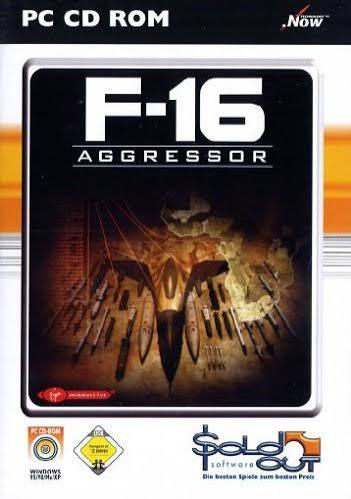
The Sold Out Software budget re-release was published in 2001. It was released on 2 x CD-ROMs with the first CD containing Internet Explorer 6, Shockwave Flash, a pdf reader and menu system and a preview of other Sold Out Software releases. The second CD is equivalent to the initial retail release and continues to use a 32-bit installer.
Preparation
The following section covers ripping retail media, recommended mounting tools and game management.
Retail media
Due to the age or the media and the drives required to read it, it is recommended to rip CD-ROM media to image files, to save wear and tear on media and the mechanical drives.
The CD-ROMs should be ripped to a bin/cue image pair format to preserve the CD audio tracks. Only the second CD of the Sold Out Software re-release needs to be ripped.
CD images
It is recommended that a CD image tool be used to allow CD images be mounted, such as Daemon Tools Lite v11 (an earlier free version without ads) or WinCDEmu, as this allows the CD audio to be played during the game.
Game management
It is recommended to use a game management strategy or similar. The recommended game management folders are:
cd - for any CD images.
conf - for joystick/HOTAS configuration files and to store DIrectX wrapper files/settings in sub-folders, if you to wish to try an alternative wrapper.
docs - for game documents.
patch - for compatibility patches.
These management folders can be found in the following game folder (as an example):
X:\Games\Win\F-16 Aggressor SetupAlongside the Aggressor installation folder:
X\Games\Win\F-16 AggressorInstallation
The following gallery shows the steps involved in installing the game:
Select an installation language. Installation introduction. Licence agreement. Selecting an installation folder. Select a custom installation. Ensure all components are selected. Installation summary. File copying. Select No when asked to install DirectX 6.0. Select No when asked to install the Indeo video codecs. Click Finish to complete the installation.
Running
The game requires the CD/image to be mounted before running the game. The game is run with the following:
f-16.exeGraphics
The compatibility tools recommended for Aggressor are DDrawCompat or dgVoodoo2. DDrawCompat provides a 'softer' image and may be a preferable for those wishing to use the original 4:3 aspect ratio. However, playing the intro movie with DDrawCompat is often problematic.
dgVoodoo2 provides a 'harder' image and due to the verticality of the cockpit in a 4:3 aspect ratio, running in a 16:9 stretched aspect ratio is possible and may provide a better image with dgVoodoo2. Movies play more consistently with dgVoodoo2 although there is some stuttering at higher resolutions.
Although the game also supports Glide, at present attempts to use Glide under Win10 have proven unsuccessful. Using Glide in the game may required a PCem or 86Box virtual machine using an emulated 3Dfx card which is out of scope for this guide.
The following galleries shows DDrawCompat and dgVoodoo2 graphics in-game at a 1024x768 resolution:
DDrawCompat cockpit. dgVoodoo2 cockpit.
DDrawCompat external view. dgVoodoo2 external view.
The choice of wrapper is left to personal preference.

Both wrappers will exhibit a display device issue, where resolutions are shown in the display device field preventing the game from starting (see screenshot).
This is suspected to be due to both wrappers providing more resolutions to the game than it can handle. The configs for both wrappers adjust the config to prevent this issue.
dgVoodoo2
The version used is dgVoodoo v2.87.3. It is available from the dgVoodoo2 GitHub, Releases. To install:
Download dgVoodoo2 (dgVoodoo2_87_3.zip) and extract to a new folder.
Copy the following dgVoodoo2 files to the Aggressor installation folder. Note: the paths are not important you just need to add the files:
dgVoodooCpl.exe
MS\x86\D3D8.dll
MS\x86\D3D9.dll
MS\x86\D3DImm.dll
MS\x86\DDraw.dll
The following gallery shows the config for dgVoodoo2. To access the extended options right click in the dgVoodoo banner and select, Show all sections of the configuration.
General settings. DirectX settings. Extended general settings. Extended DirectX settings.
In the General tab, the scaling mode can be set to Stretched (for 16:9) or Stretched, 4:3 Aspect Ratio.
In the DirectX tab, the Resolution should set to Unforced.
In the GeneralExt tab, in System hooks, both GDI and Cursor should be checked.
In the DirectExt tab, in Enumerated resolutions, the Defaults should be set to Classics.
In the DirectExt tab, in Enumerated resolutions, additional resolutions can be set in Extras field as a comma separated list in the format: <width>x<height>@<refresh rate>. Only a few should be set, too many will result in the display device issue occurring.
The above config is included below:
DDrawCompat
The version used is DDrawCompat v0.7.1. It is available from the DDrawCompat GitHub, Releases. To install:
Download DDrawCompat (DDrawCompat-v0.7.1.zip) and extract ddraw.dll to the Aggressor installation folder.
A DDrawCompat config file (DDrawCompat.ini) is required and can be found below. It should be downloaded and extracted to the Aggressor installation folder.
This file can be edited to replace the 1600x1200 or 1920x1200 resolutions with your own prefered resolution.
Sound
The following compatibility tools to enable sound should both be used.
Compatibility database
A Microsoft compatibility database is required for Aggressor. The database patch can be opened and examined in the Microsoft Compatibility Administrator (32-bit), part of the Microsoft Application Deployment Kit (ADK). For further info on the Microsoft Compatibility Administrator see, A retro gamers friend: Microsoft Compatibility administrator.
Download the patch and extract to a folder.
The zip archive comprises of:
PatchInstall.bat, to install the database.
PatchUninstall.bat, to remove the database.
F-16 Aggressor.sdb, the compatibility database containing the fix
F-16 Aggressor.sdb contains a single compatibility fix, EnableHardwareMixer. It forces legacy applications or video games that rely on DirectSound or older Windows audio wrappers to utilize hardware-accelerated audio mixing rather than falling back to software emulation.
Run PatchInstall.bat, to install the database.
DSOAL
DSOAL (DirectSound via OpenAL) is used to improve the sound in the game, e.g. it stops the engine drowning out the instructors voice.
Those wishing to use headphones may wish to experiment with settings in alsoft.ini to optimise sound. The latest version is used, DSOAL r694 + OpenAL Soft r10692, available from DSOAL GitHub Releases.
The following files should be extracted from the zip/7z archive into the Aggressor installation folder:
\DSOAL\Win32\dsoal-aldrv.dll
\DSOAL\Win32\dsound.dll
\DSOAL\Win32\alsoft.iniNote: the file paths are not copied into the installation folder, just the files themselves
Movies
The intro movie uses the Intel Indeo v5.0 codec. If Indeo videos are playing correctly on your machine the following installation advice may not be required.
Installation
If the intro movie does not play then the codec may be disabled. One method is to download and install the K-Lite Codec Pack.
The Basic install is known to include these codecs, (as listed on the Comparison of abilities page) and after installation the K-Lite Codec Pack Tweak Tool can be used to enable them (if not already).
The K-Lite Codec Pack is available from Codec Guide, Download K-Lite Codec Pack.
Playing
Playing the intro movie may be problematic when using DDrawCompat. dgVoodoo2 is usually more successful but at higher resolutions there may be some stuttering. To play the movies smoothly, using the in-game configuration to:
Switch the Graphics Device to Software: DirectDraw.
Switch the Resolution to 640x480 (8 bit).
After playing the movie, switch back to your preferred device and resolution.
Controls
The following section covers joystick/HOTAS setup and head tracking.
HOTAS config
Joystick, throttle and rudder pedals are supported. Configuring axes may not be required if your HOTAS has 4 axes or less. When using a combination of devices totaling more than 4 axes, a virtual controller can be configured (with vendor software or Joystick Gremlin), limited to 4 axes. The physical axes to Windows axes were configured as follows:
For those using controllers from multiple vendors, the vJoy/Joystick Gremlin combination may be required instead of vendor specific HOTAS profile software. You may also have to use HidHide as a device firewall, to hide your real controllers, so only the vJoy virtual controllers are detected by Aggressor. [6][7][8].
The physical axes to Windows axes were configured as follows:
Physical axis | Windows axis |
Joystick x-axis | DX_X_AXIS |
Joystick y-axis | DX_Y_AXIS |
Throttle | DX_Z_AXIS |
Rudder | DX_ZROT_AXIS |
Additional settings
In addition to the above, the device (physical or virtual) to use must be set as the Preferred device in the Advanced options of the Windows Game Controllers panel (joy.cpl) as shown below:
Game Controllers, note the Advanced options. Setting a preferred device to use in the game.
Head tracking
The Aggressor virtual cockpit uses a mouselook scheme to look around the virtual cockpit, enabled by holding the right mouse button and disabled by releasing the button.
The head tracking will be pitch (y-axis) and yaw (x-axis) only as these are the only facilities provided by the underlying mouselook mechanism.
Fortunately this head tracking to mouse conversion is well supported. There are two recommended methods utilising this conversion, detailed below.
TrackIR
This is a pure TrackIR solution, it uses the standard TrackIR 5 software and the TrackIR utility, TrackIR Mouse Emulation (TIRmouse.exe). This is found in the TrackIR install folder.
Once a profile is configured for Mouse Emulation in the TrackIR 5 software, the mouse emulation utility is run. Head motion should now be reflected in the mouse emulation utility. The utility must remain open and in the foreground (until covered by the game window), it can not be minimised and will not run in the background.
OpenTrack
Opentrack has been covered in combination with AITrack in the article, Head tracking with Opentrack & AITrack. The Opentrack utility supports mouse emulation, so Opentrack and AITrack provide the head tracking solution, and instead of sending TrackIR data to Super Hornet, Opentrack can send mouse data, allowing head tracking in the virtual cockpit.
In-game configuration
The in-game configuration is straightforward once a 3D hardware graphics device is selected with a preferred resolution, all other options are enabled or set to maximum. Sound volume is a personal preference with other options enabled, as shown below:
All graphics options enabled and maximized. All sound options enabled.
Documentation
The only known documentation is the manual. This is available on the CD of the initial retail release and on the first CD of the Sold Out Software re-release.
The only known on-line copy is available from Old-Games.RU, F-16 Aggressor, Files as a rar archive/pdf document.
Example video
Finally...
Credit and thanks goes to:
The developers of Daemon Tools Lite and WinCDEmu.
narzoul for DDrawCompat.
dege for dgVoodoo2.
kcat for DSOAL.
Codec Guide for hosting the K-Lite Codec Pack.
The developers of TrackIR.
The OpenTrack and AITrack developers.
Old-Games.RU for hosting documentation.
Good hunting!

Comments