


Jane's F-15 part 3: Adding head tracking
Updated: Dec 23, 2025

This guide will be taking a look at the various options available to enable head tracking in Jane's F-15.
Although TrackIR and other head tracking solutions aren't supported, we can still implement tracking due to control mechanism used in the virtual cockpit.
Mouse emulation
The Jane's F-15 virtual cockpit uses a mouselook scheme to look around the virtual cockpit. If we can use utilities to convert head tracking data into mouse inputs we can enable head tracking within Jane's F-15.
The head tracking will be pitch (y-axis) and yaw (x-axis) only as these are the only facilities provided by the underlying mouselook mechanism.
Fortunately this head tracking to mouse conversion seems well supported. There are three different methods utilising this conversion, detailed below.
Method 1: TrackIR
This is a pure TrackIR solution, it uses the standard TrackIR 5 software and the TrackIR utility, TrackIR Mouse Emulation (TIRmouse.exe). This is found in the TrackIR install folder.
Once a profile is configured for Mouse Emulation in the TrackIR 5 software, the mouse emulation utility is run. Head motion should now be reflected in the mouse emulation utility. The utility must remain open and in the foreground, it can not be minimised and will not run in the background.
Head tracking may be disabled until an F-15 mission begins. Thereafter the tracking mouse emulation will remain enabled.
TrackIR 5 TrackIR Mouse Emulation
Advantages:
A simple 'TrackIR only' solution.
Disadvantages:
Always 'on', no ability to enable/disable.
Must run in the foreground.
Tracking profile can only be adjusted in TrackIR software.
Requires TrackIR.
Method 2: TrackIR & FreePIE
This method uses the standard TrackIR software to enable the Track IR device. Data sent from TrackIR, is read by FreePIE and converted into mouse inputs. The FreePIE software is described (and available on the FreePIE website) as::
FreePIE (Programmable Input Emulator) is a application for bridging and emulating input devices. It has applications primarily in video gaming but can also be used for VR interaction, remote control, and other applications. A typical application might be controlling the mouse in a PC game using a Wiimote. Device control schemes are customized for specific applications by executing scripts from the FreePIE GUI. The script language is based on the Python syntax and offers non-programmers an easy way to interface devices.
This guide assumes the latest version, v1.11.724.0 is used. Once installed a script is required to convert TrackIR data into mouse inputs. Fortunately TrackIR mouse emulation this is one of the FreePIE example scripts.

FreePIE scripts
The core of FreePIE are the Python scripts used to read and write controller values. The following is a slightly modified example script that uses the 'z' key to toggle head tracking on/off and is activated when joystick button 4 is held down.
# Use Z to toggle on/off and joystick button 4 to activate head tracking.
def update():
    yaw = trackIR.yaw
    pitch = trackIR.pitch
    deltaYaw = filters.delta(yaw)
    deltaPitch = filters.delta(pitch)

    if (enabled and hotkey):
        mouse.deltaX = deltaYaw*multiply
        mouse.deltaY = -deltaPitch*multiply

if starting:
    enabled = False
    multiply = 20
    trackIR.update += update

# hotkey = mouse.rightButton
hotkey = joystick[0].getDown(4)
toggle = keyboard.getPressed(Key.Z)

if toggle:
    enabled = not enabled
You may wish to alter this script to:
Change the hotkey to something else.
Remove the hotkey to activate and just toggle on/off.
Change the multiply factor.
Advantages:
Can be toggled, enabled/disabled.
Scripting provides a large number of options.
Once script is started the FreePIE scripting app can be minimized.
Tracking profile can be adjusted in TrackIR software or by modifying the FreePIE script.
Disadvantages:
More complex than method 1.
Requires knowledge of Python, if scripts require changing.
Requires TrackIR.
TrackIR profile may need to run in exclusive mode.
Method 3: Opentrack
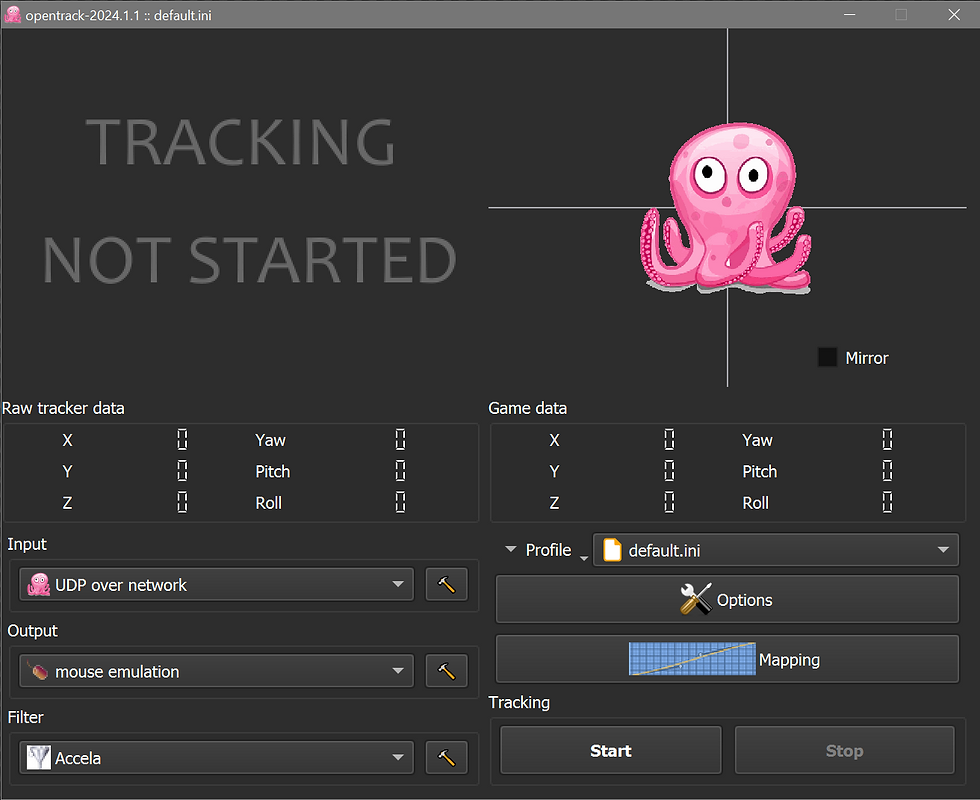
Opentrack has been covered in combination with AITrack in the article, Head tracking with Opentrack & AITrack. The Opentrack utility supports mouse emulation, so Opentrack and AITrack provide the head tracking solution, and instead of sending TrackIR data to the F-15 sim, Opentrack can send mouse data, allowing head tracking in the virtual cockpit.
The screenshot below shows Opentrack configured for mouse emulation.
Advantages:
Does not require TrackIR.
Simple to implement.
Open source software solution.
Disadvantages:
Always 'on', no ability to enable/disable.
Example video
Finally...
This article has covered three different methods to implement mouse emulated head tracking in Jane's F-15. It is left to personal preference as to which one is most suited to your needs.
The following group and individuals are credited and thanked for their work:
NaturalPoint for the TrackIR and mouse emulation software.
AndersMalmgren and zelmon64 as the maintainers of the FreePIE project.
The developers of Opentrack.
Good looking!
Comments