


F22 Air Dominance Fighter part 3: Dominating in Win 10
Updated: Dec 6, 2025

A guide to running F22 Air Dominance Fighter under Win10.
Although not perfect F22 Air Dominance Fighter (F22 ADF) runs very well under Win10, with most issues being either cosmetic, or music related, which could be considered minor for this classic flight sim.
If you haven't already, it's strongly recommended to take a look at the previous F22 Air Dominance Fighter part 2: PCem build article as this provides the F22 ADF build used in Win10.
Strategy
The strategy will be taking the build created in a PCem Win95 virtual machine (VM) and moving it onto Win10. Preparation for running under Win10 will be covered, followed by in-game configuration. But before that, we'll take a look at the utilities which provide compatibility for the optimum experience under Win10.
Before continuing it's recommended to take a look at the remaining issue summary and decide if they are acceptable when running under Win10.
Retail media
The retail media advice given in the previous article, remains valid.
Game Management
As a windows game running build with PCem installation folder will be copied from the PCem Win95 VM. However some limited game management is still useful for installation folder location and files used in the F22 ADF setup.
The installation folder and setup files for F22 ADF and other Windows games can be found in the same folder (my own, as an example):
D:\Games\Win\<Game folders>
D:\Games\Win\F22ADF
D:\Games\Win\F22ADF Setup
The following setup folders are used (similar to the previous article):
conf - to store any HOTAS profile configuration files.
docs - to store any useful documents, manuals, etc.
patch - to store a copy of recommended patches, zip archives or installers.
cd - to store any cd images.
Compatibility utilities
This section covers the required utilities required for maximum compatibility under Win10 (to date). It is recommended that copies of zip archives or installers are kept in the setup patch folder for safekeeping.
nGlide

Glide emulation is provided by the latest version of nGlide v2.10. Available from Zeus Software in nGlide download. nGlide is installed as a system level Glide wrapper as explained further in Glide Wrappers: Last Man Standing or Peace and Harmony?
Once installed the nGlide configurator is used to set the nGlide settings as shown in the screenshot.
DirectX wrappers
There are currently cosmetic issues with the menu screen as the game runs with DirectX5. For Win10 we don't use any DX wrappers as they have issues with F22 ADF.
A number of DirectX wrappers were tested including cnc-ddraw, DDrawCompat, dgVoodoo2, DxWrapper and DxWnd. dgVoodoo2 wouldn't start the game, DxWrapper would not 'hand off' to nGlide, cnc-draw, DDrawCompat and DxWnd would either start without fixing the cosmetic issue or start and crash moments later.
The issue seems to be with GDI components either caused by the game, wrapper or combination of both. DDrawCompat v0.2.0 didn't fix the issue but could run the game, while DDrawCompat v0.3.0 that incorporated enhanced GDI handling would fix the issue but would crash soon afterwards.
VirtualMIDISynth and MIDIMapper (optional)
Installing and configuring these utilities is optional if you prefer to run F22 ADF without MIDI music and just wish to use sound fx and speech.

VirtualMIDISynth is a MIDI synth that allows the soundfonts supplied with F22 to be used. MIDIMapper allows the VirtualMIDISynth device to be used as the default MIDI device, instead of the default Microsoft synth device (with does not support soundfonts).
If you have previously installed VirtualMIDISynth and MIDIMapper to play F22 ADF under PCem emulation, then you don't need to install them again, you're all set.
If you only installed VirtualMIDISynth then it's time to install MIDIMapper as F22 ADF does not allow you to choose a preferred MIDI device (see below).
If you haven't installed either then...
The first step is to download and install VirtualMIDISynth, as described in the article, DOSBox Staging and VirtualMIDISynth. The DOSBox Staging config section can be ignored, as we aren't using DOSBox.
Then download and install MIDIMapper, which will integrate with VirtualMIDISynth, as described in the earlier article, VirtualMIDISynth and MIDIMapper.
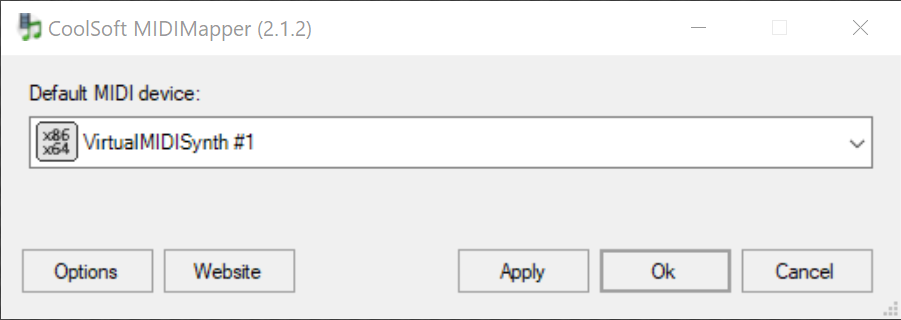
Now we select VirtualMIDISynth as the default MIDI device with the MIDIMapper configurator:
Run the MIDIMapper Configurator.
Choose VirtualMIDISynth as your preferred default MIDI device.
Or with the VirtualMIDISynth configurator (that integrates with the MIDIMapper):
Run the VirtualMIDISynth Configurator.
Select the MIDI Mapper tab.
Choose VirtualMIDISynth as your preferred default MIDI device.

As shown above, both utilities allow you to do the same thing and set the default MIDI device. That concludes installing and configuring VirtualMIDISynth and MIDIMapper, adding the F22 ADF soundfonts is covered later.
TrueSpeech Codec
Speech in F22 ADF uses the TrueSpeech codec. This was included with earlier versions of Windows (up to WinXP) and so it was already available under the PCem Win95 VM. With Win10 this codec must be installed, if we wish to hear in-game speech.
It is available from PCGamingWIki as the DSP Group TrueSpeech codec installer, distributed as a zip file.
Installation requires extracting the installer, tsp_codec_install.exe and running it. It should install without issue.
OTVDM/WineVDM (optional)
OTVDM, also known as WineVDM, is a port of the Wine project that allows you to run old 16-bit Windows applications on modern 64-bit Windows operating systems. However, we won't be using it for this reason.
OTVDM also includes a winhlp32.exe utility, which allows opening old style Windows help files on 64-bit Windows, including the F22 ADF help file, which acts as a manual for some versions and is a useful reference.
The latest version of OTVDM/WineVDM is v0.9.0 available from the WineVDM GitHub, found in Releases. As it is distributed as a zip file, installation only requires extracting the files to a suitable folder of your choosing.
HOTAS Config
Joystick, throttle and rudder pedals are supported. Configuring axes may not be required if your HOTAS has 4 axes or less. When using devices totaling more than 4 axes, a virtual controller can be used, limited to 4 axes.
For those using controllers from multiple vendors, the vJoy/Joystick Gremlin combination may be required instead of vendor specific HOTAS profile software. You may also have to use HidHide as a device firewall, to hide your real controllers, so only the vJoy virtual controllers are detected by F22 ADF.
The physical axes to Windows axes were configured as follows:
Physical axis | Windows axis |
Joystick x-axis | DX_X_AXIS |
Joystick y-axis | DX_Y_AXIS |
Throttle | DX_Z_AXIS |
Rudder | DX_ZROT_AXIS |
Note: The rudder axis changes from DX_XROT_AXIS (in the previous article for PCem) to DX_ZROT_AXIS (for Win10), for my controllers. You may/may not have to make a similar change depending on your HOTAS hardware.
PCem build
Once the compatibility utilities are installed and configured, it's time to copy the F22 ADF install from the PCem Win95 virtual machine onto Win10. The steps to follow are:
Shutdown the virtual machine, if it is running, and close PCem.
Mount the virtual machine hard disk image (a .vhd file) by opening it. The hard disk will be mounted, assigned a drive letter and will be accessible with File Explorer.
The F22ADF folder needs to be copied from the hard disk image into Win10. If you installed F22 ADF into the default F22 ADF installation folder it can be found in (X: will be the drive letter assigned by Win10):
X:\Program Files\DIDCopy the F22ADF folder into a suitable location in Win10. As an example, my game management folder discussed earlier, would be:
D:\Games\WinThere should now be a D:\Games\Win\F22ADF folder present in Win10, as an example.
Unmount the hard disk image by ejecting the assigned drive. You may get a notification from Win10 about the device being safe to remove.
As F22 ADF has already been patched on the virtual machine, this concludes the copying of the F22 ADF installation folder.
Preparation
If F22 ADF was run in the PCem Win95 VM, it may have created configuration files that are incompatible with the new installation on Win10. It is recommended to delete the following files in the F22ADF folder:
game.cfg
players.lst
It is safe to do so, as these files will be recreated once F22 ADF is run in Win10.
The properties of the _F22.exe file should be changed. Under the Compatibility tab, check the 'Run this program as an administrator' checkbox.
Soundfonts (optional)
Configuring soundfonts is optional if you prefer to run F22 ADF without MIDI music and just wish to use sound fx and speech.
It is also optional if you added the soundfonts earlier when setting up the MIDI music for PCem. They have already been added to VirtualMIDISynth and are still available.
F22 ADF has three soundfonts, (one for each of the AWE 32 memory configurations, so each soundfont is a different size), as described below:
File | Size |
tfx3512.sf2 | 443 KB |
tfx31meg.sf2 | 897 KB |
tfx3.sf2 | 1.4 MB |
These soundfonts can be found in the F22ADF\Program folder. You may add all three to VirtualMIDISynth, but only one should be active when playing. It's recommended the largest soundfont (tfx3.sf2) be used for highest quality music. To configure VirtualMIDISynth:
Run the VirtualMIDISynth Configurator app.
Add the F22 soundfonts to VirtualMIDISynth and select one of them (tfx3.sf2 recommended).
Running
When starting the game for the first time a new pilot will need to be created due to the pilot config file, players.lst being deleted earlier.
When running with MIDI music enabled it is recommended to wait approximately 30 seconds on the pilot selection dialog before continuing. Jumping straight into the menu page can cause a crash to desktop (CTD).
The graphics on the menu page will have issues, with the incorrect graphics shown. These issues are cosmetic and the menu page remains fully functional.
With MIDI enabled, wait 30s at pilot selection Cosmetic graphics issues on the menu page
When MIDI music is playing the sound fx and speech will not be heard on menu screens or in missions. This issue is resolved in F22 Air Dominance Fighter part 4: Sounding better.
Alternatively play without MIDI music with just sound fx and speech available in-game.
The CD audio track is not available when playing in Win10.
Configuration
Configuration options should now be set. When running under Win10 all graphical options can be selected or maximised, as shown below.

The joystick option can be selected if a joystick has been correctly configured.
Sound fx and speech can be enabled, MIDI music can be enabled but there are issues as described in the running section above.
Further configuration (optional)
There may be a number of hidden settings which aren't available from the in game options screen. These options may not work on F22 ADF and may only be applicable to the sequel Total Air War (TAW), however given the commonalities in F22 ADF and TAW, these may be worth trying.
This information comes from the Total Air War 2.0 mod document, GameCFG_Settings.txt, distributed as part of the mod. The file is included below:
The hidden settings are manually applied by editing the game.cfg file in any suitable text editor (e.g. Notepad, Notepad++, etc.)
Note: Once any hidden settings are manually applied, changing options through the in-game menu will cause hidden settings to be removed when the game.cfg config file is regenerated, after clicking Ok to leave the options menu. Once edited, it's recommended to take a backup of game.cfg, in case the options are accidentally changed in-game.
Note: Do NOT make the game.cfg file read-only, this causes a crash to desktop when the game.cfg file can't be changed after in-game options are selected.
Setting up help (optional)
The F22 ADF Windows help file is a very useful reference, however, legacy Windows help files are not accessible under Win10 without the use of the winhelp32.exe utility, provided by OTVDM.
It is recommended to create a shortcut of the winhelp32.exe and specify the F22 ADF help file as part of the command line in the Target box:
X:\<OTVDM folder>\winhlp32.exe X:\<folder>\F22ADF\PROGRAM\F22help.hlpFor example:
D:\utils\otvdm\winhlp32.exe D:\Games\Win\F22ADF\PROGRAM\F22help.hlpUse double quotes (") around file paths with spaces in them.
The shortcut can be placed on the desktop or within the game management docs folders. Alternatively put the winhlp32.exe and F22help.hlp files within the docs folder and create a shortcut with the appropriate file paths.
F22 ADF help shortcut F22 ADF help
Remaining issue summary
A summary of the remaining issues when running under Win10 and any suggested workarounds.
Menu page graphics
Issue: Menu page graphics are incorrect.
No solution at present, but this is a minor issue as the menu page remains fully functional, so this is a cosmetic issue only.
MIDI music on startup
Issue: If MIDI is enabled, selecting a pilot and continuing onto the menu page straight away can cause a crash to desktop.
Workaround: Wait for approximately 30s before selecting a pilot and continuing.
MIDI or sound fx/speech in-game
Issue: Enabling MIDI music disables sound fx/speech.
Workaround: Described in detail in F22 Air Dominance Fighter part 4: Sounding better.
CD audio
Issue: The CD audio track is not available under Win10.
No solution at present.
Further configuration and MIDI
Issue: Changing options to change MIDI volume will overwrite config file causing hidden config settings to be removed.
Workaround: Use the workaround described in detail in F22 Air Dominance Fighter part 4: Sounding better. Configure and test options until optimal and satisfied, options should not need to change, going forward.
Alternate Win10 solution
This alternative solution is for those with both F22 ADF and the sequel Total Air War (TAW). The Total Air War mod, Total Air War 2.0, optimised for playing on WinXP and later versions of Windows (including Win10) also includes the F22 ADF campaigns.
Running Total Air War 2.0 under Win10 will be the subject of a later article, although strictly speaking this is a TAW solution rather than an F22 ADF solution.
Example video
Finally...
Credit and huge thanks to the following:
Zeus for nGlide v2.10.
The CoolSoft devs for VirtualMIDISynth and MIDIMapper.
PCGamingWIki for hosting the TrueSpeech codec.
otya128 for the work on OTVDM.
@Damsonn for the run as administrator hint.
Home Fries and the TAW 2.0 team for the hidden settings.
Good Hunting!

Comments